How to Scan a Device in the Evolve App
Open the Evolve application on your phone.

Select the desired Service Order you would like to scan a device for.
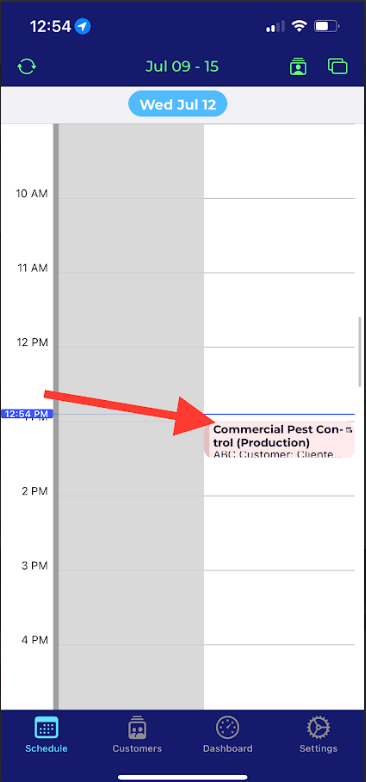
Mark Arrived if you have not already done so.
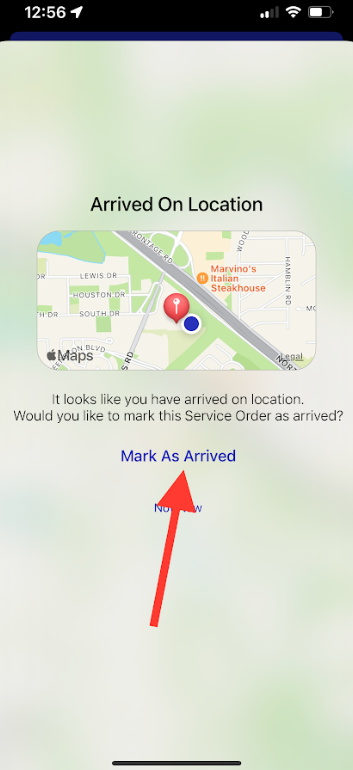
It will bring you to this screen.
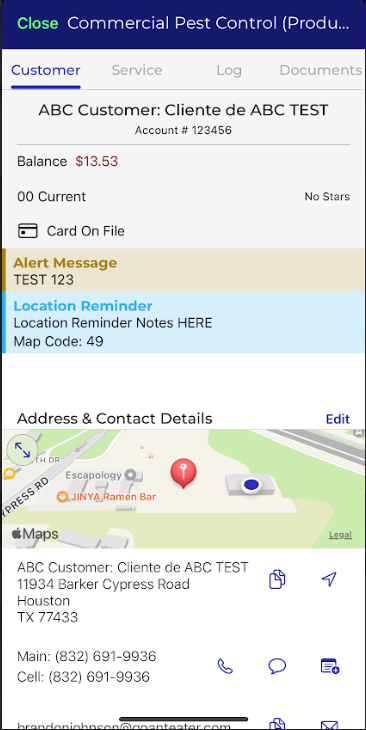
Select the Log Tab.
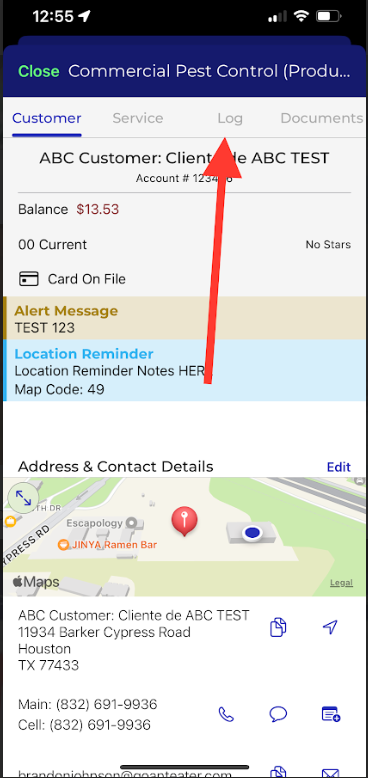
It will bring you to this screen.
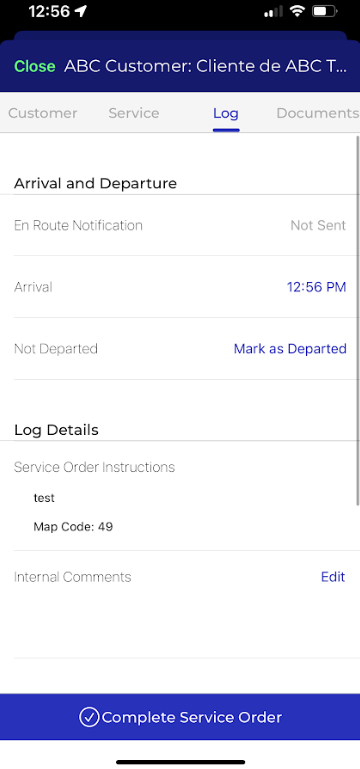
Scroll down to the Inspection Section and select it.
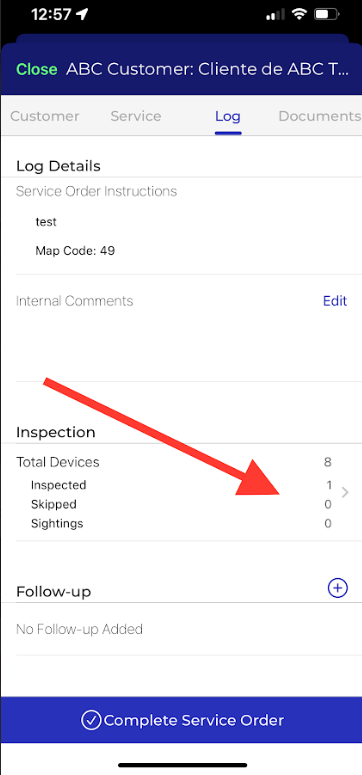
It will bring you to this screen.
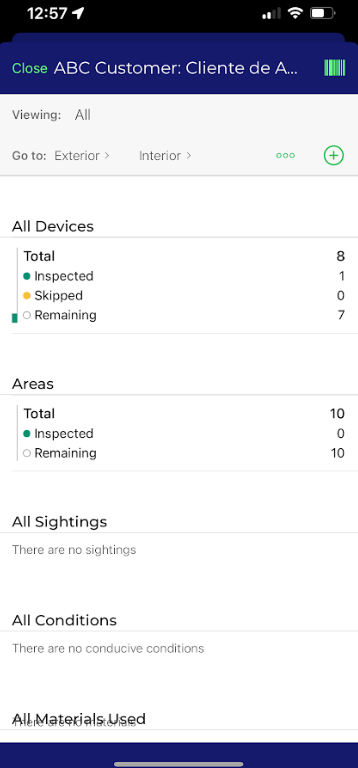
Select the bar code in the top right corner of the screen.
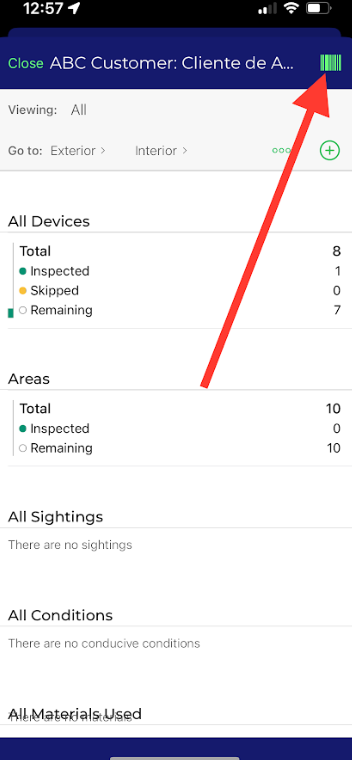
Evolve will load your camera to then be able to scan the barcode of the device you would like to service.
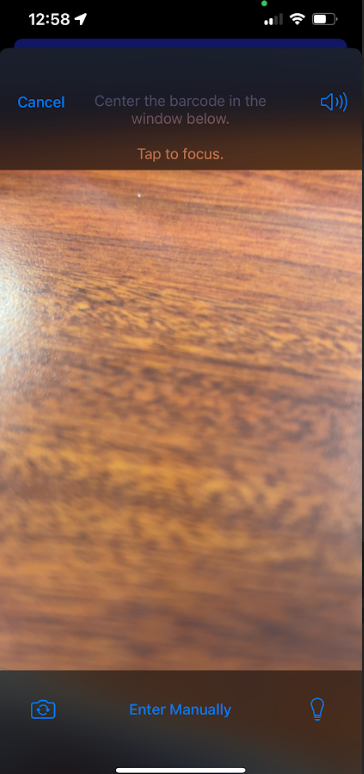
After you have scanned the station, you will input any pertinent information such as:
Product/Material Usage
Pest Sightings
Conducive conditions
Etc.
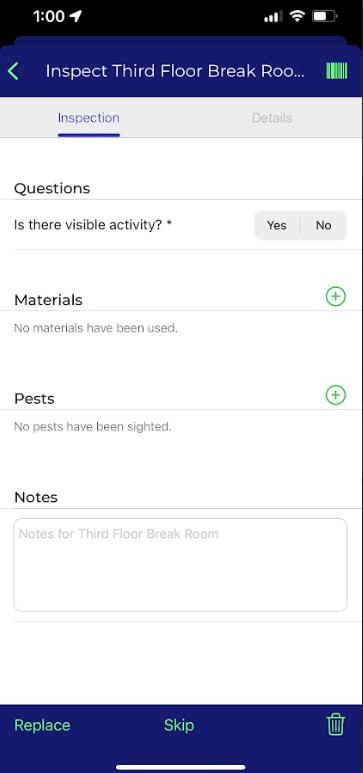
Now you can scan any other devices following the step above.
Approved by:
Norman
Steven Martin
Kenneth Baughman
Was this article helpful?
That’s Great!
Thank you for your feedback
Sorry! We couldn't be helpful
Thank you for your feedback
Feedback sent
We appreciate your effort and will try to fix the article