PODIUM - Internal Communication
-How to create a group and send messages using Podium web and APP?
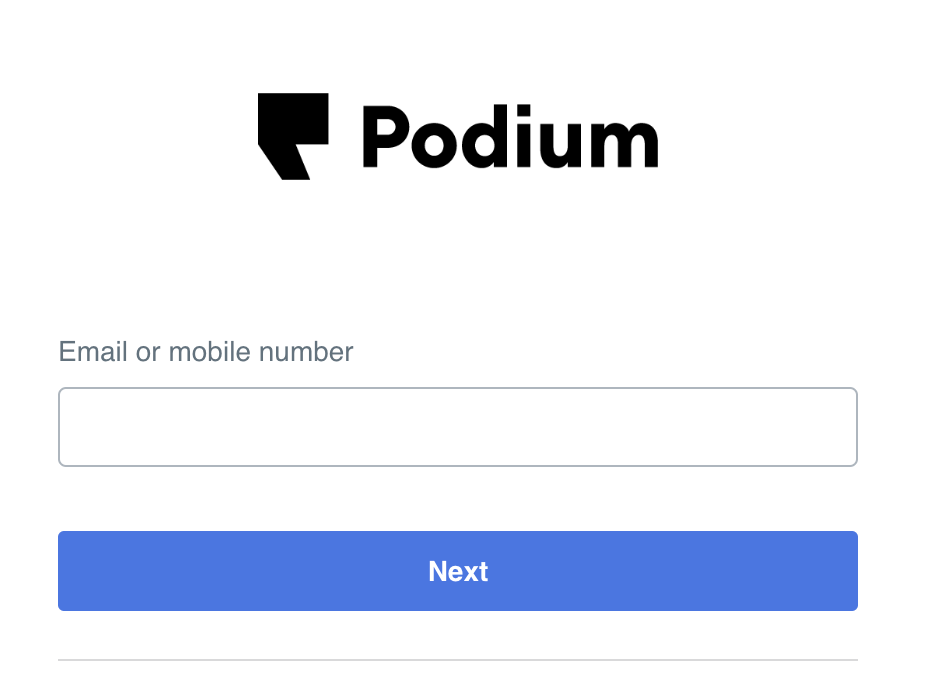
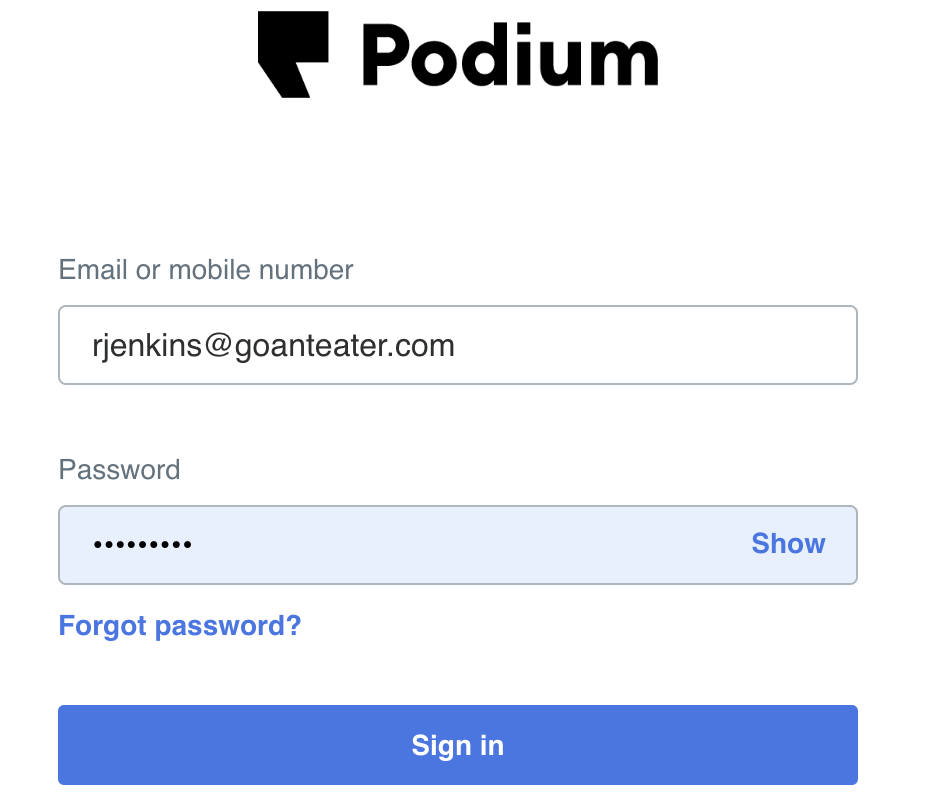
Log in to Podium web
Un: company email address i.e. rjenkins@goanteater.com
Pw: Abc(last4ofSS#)! I.e. If the last four of your SS# is 1234, then your pw will be: Abc1234!
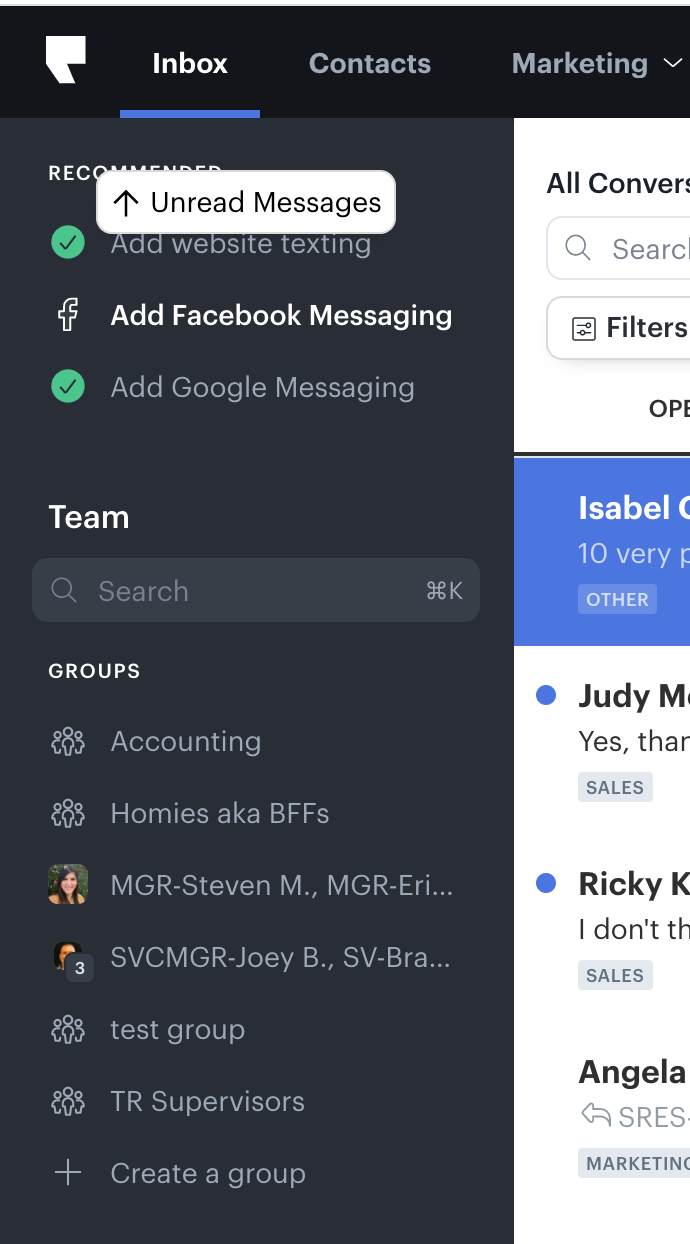
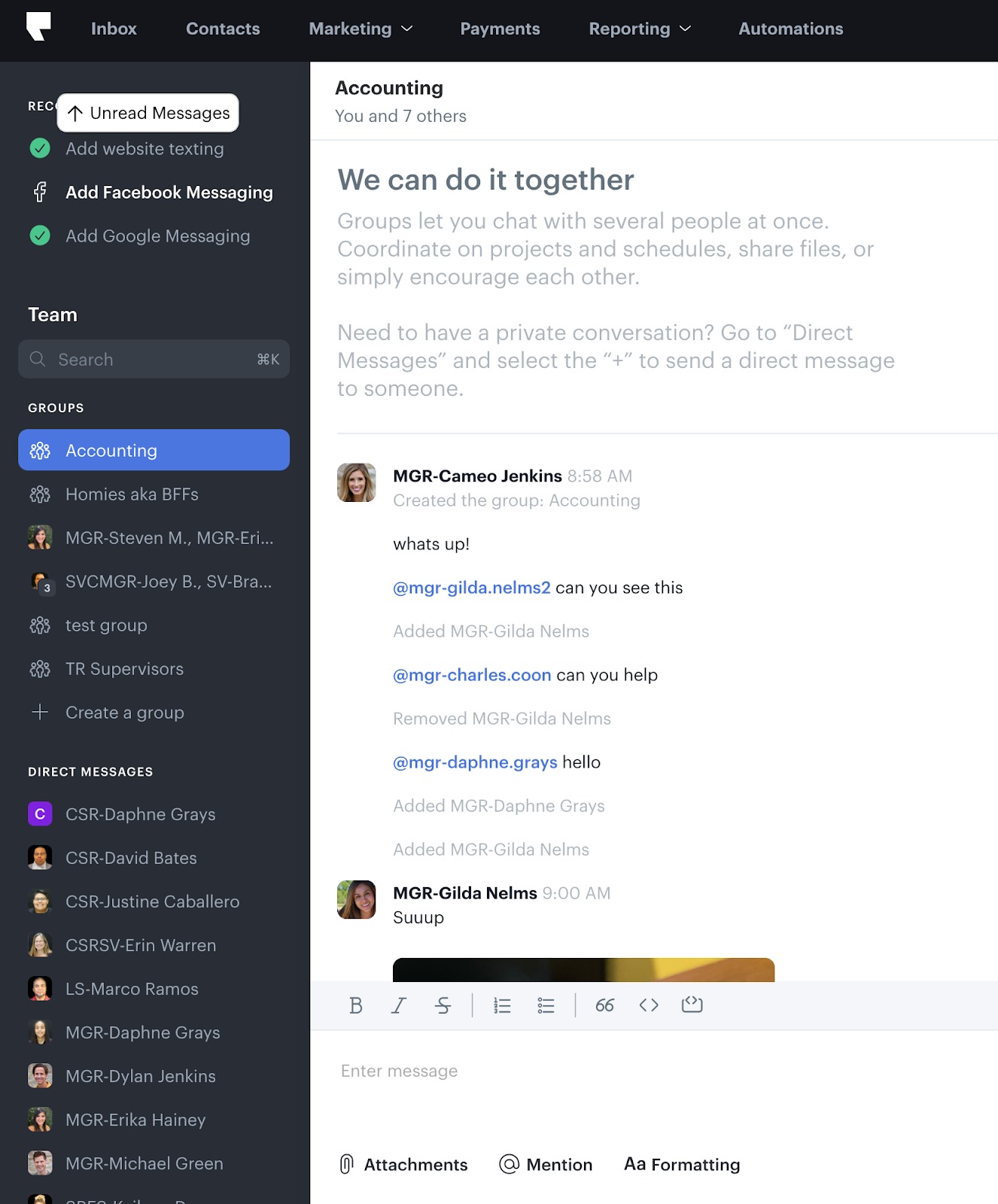
On the left side of your screen scroll down to find the “Team” area and select “+ Create a Group”
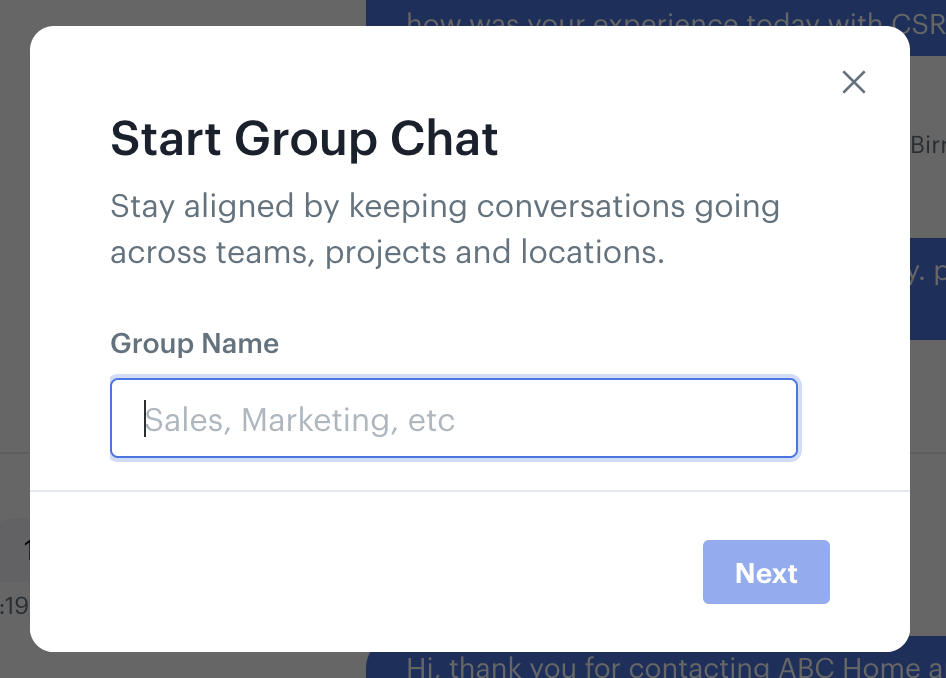
Type a name for your group and select “Next”
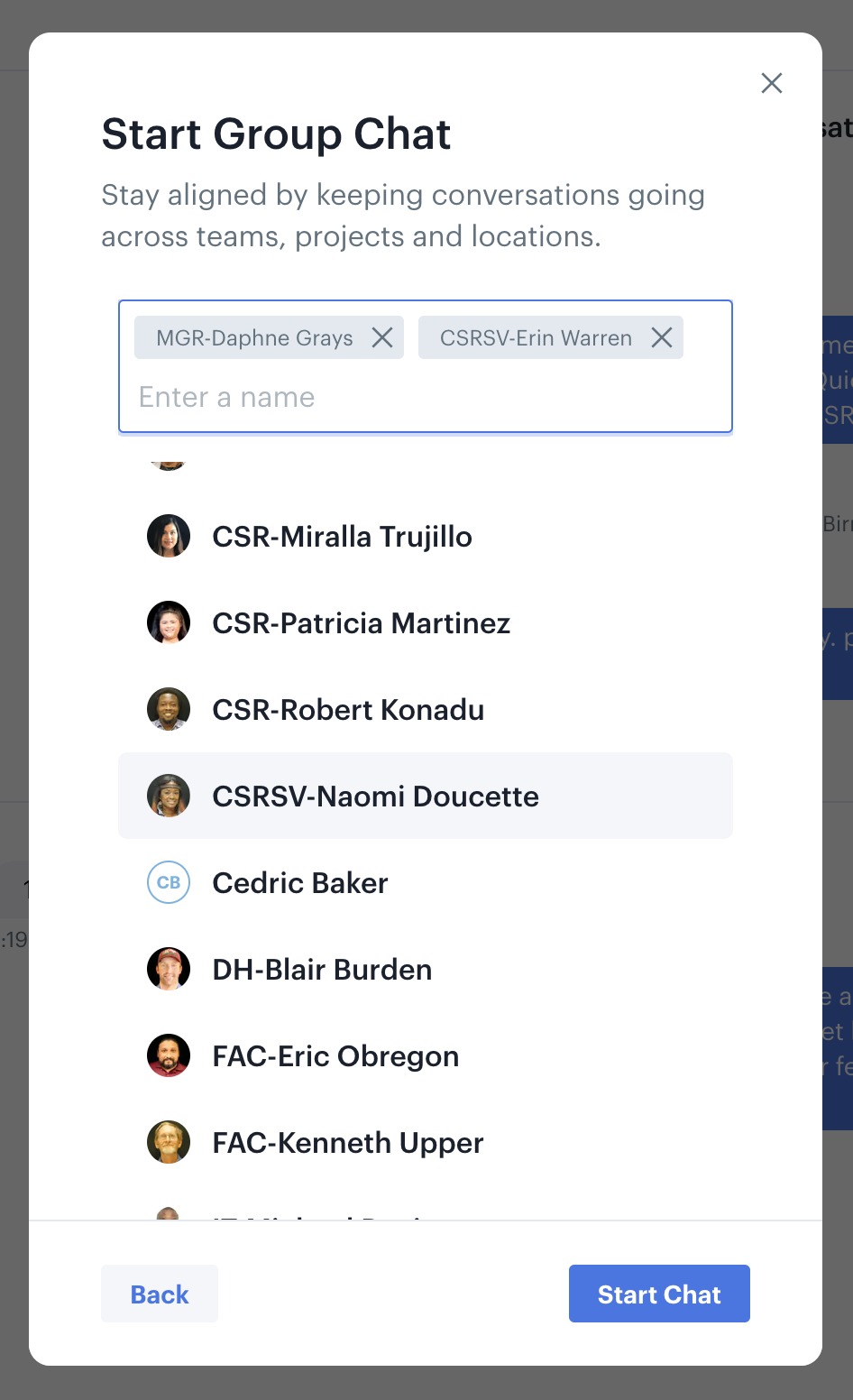
On the search bar type the name of the member you want to add and click on their name. Repeat for more members. Select “Start Chat”.
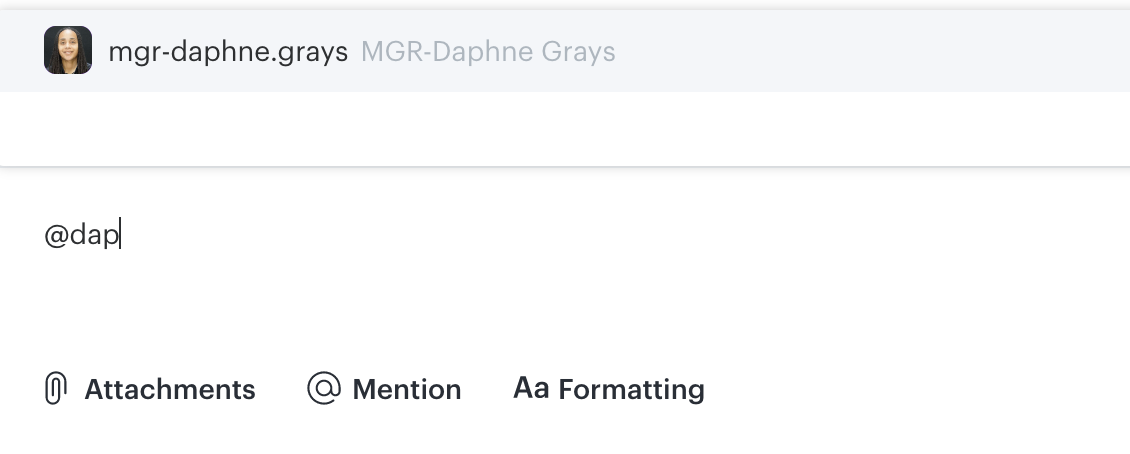
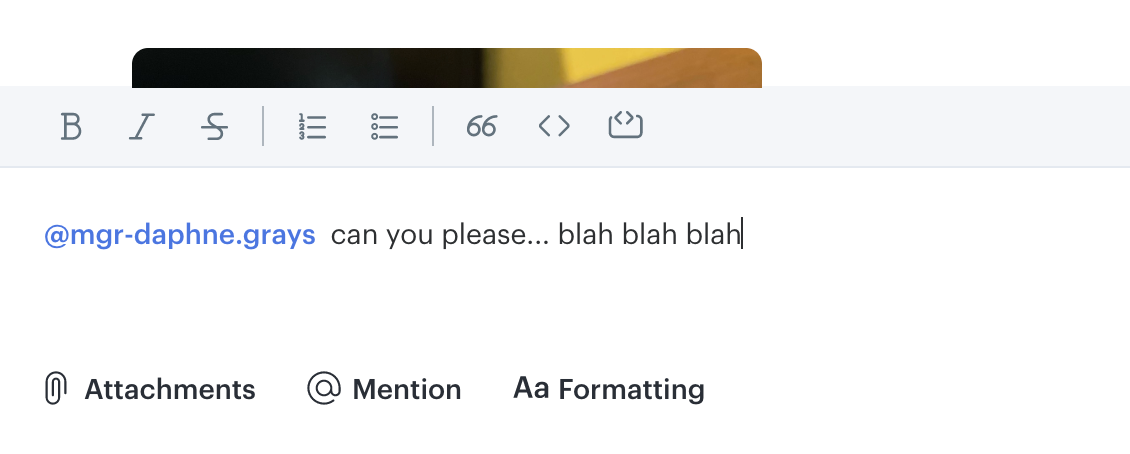
When you start typing a message, make sure you select the “@” symbol and type the name of the person you want to reach out to so they can receive a notification.
PODIUM Mobile APP
Open the Podium APP on your mobile device and proceed to enter your Podium credentials to Sign in. Don’t forget to “Allow” Notifications.
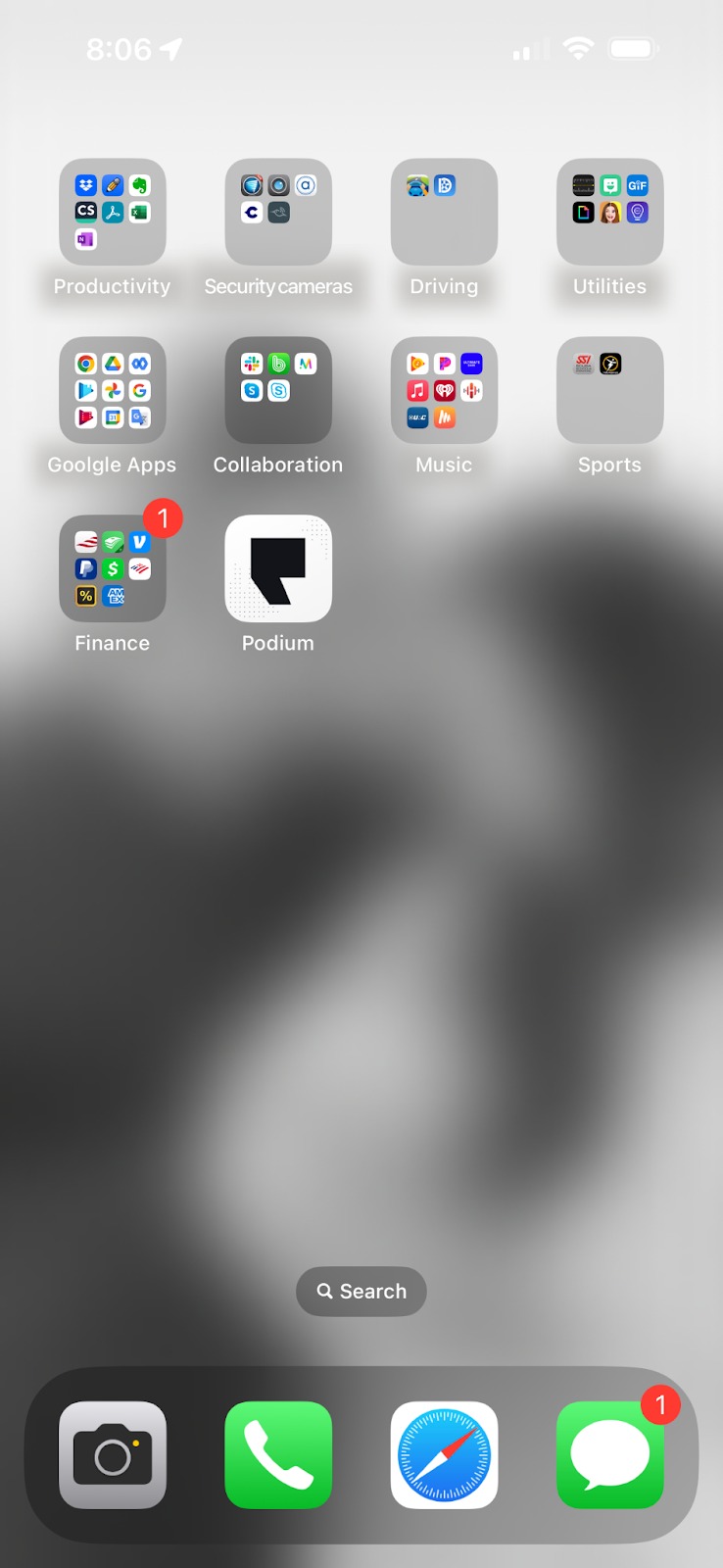
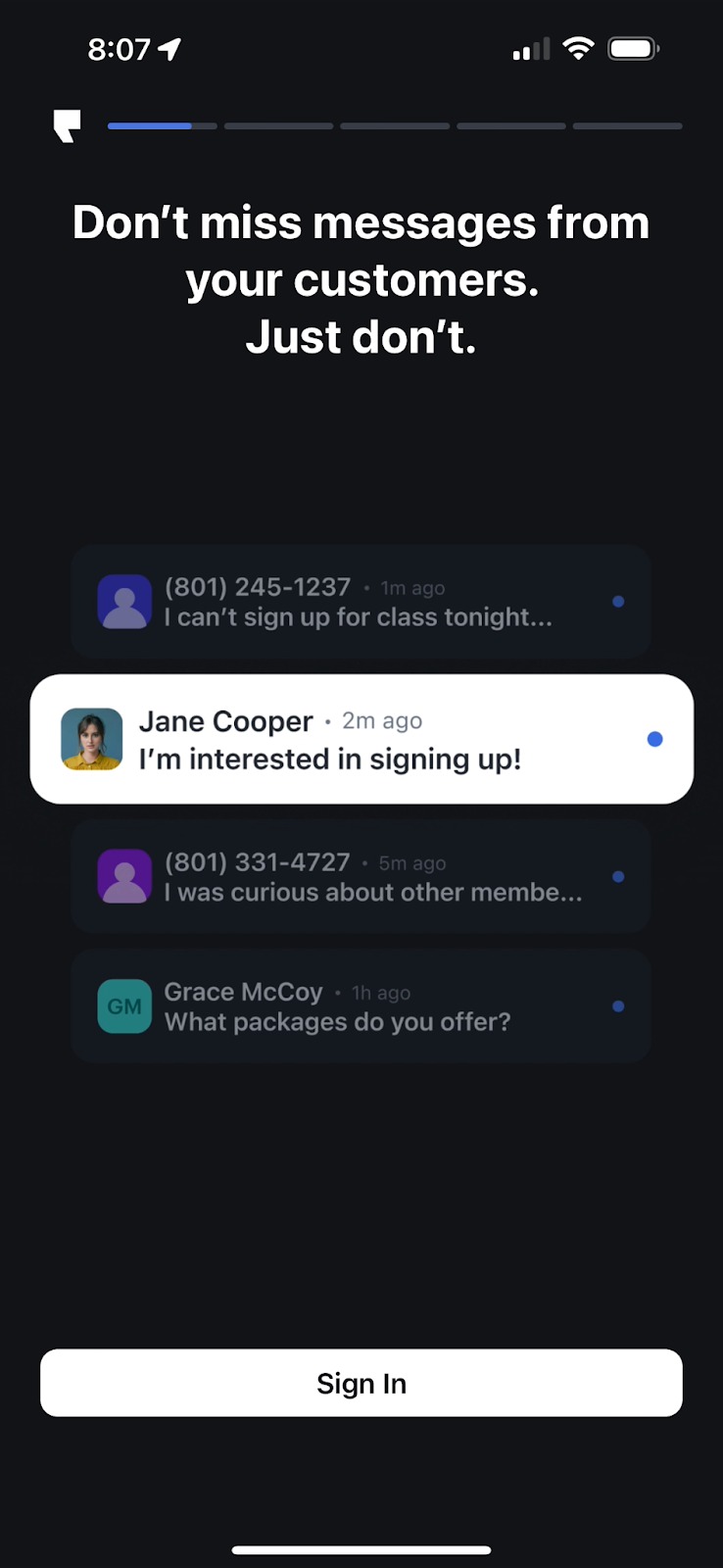
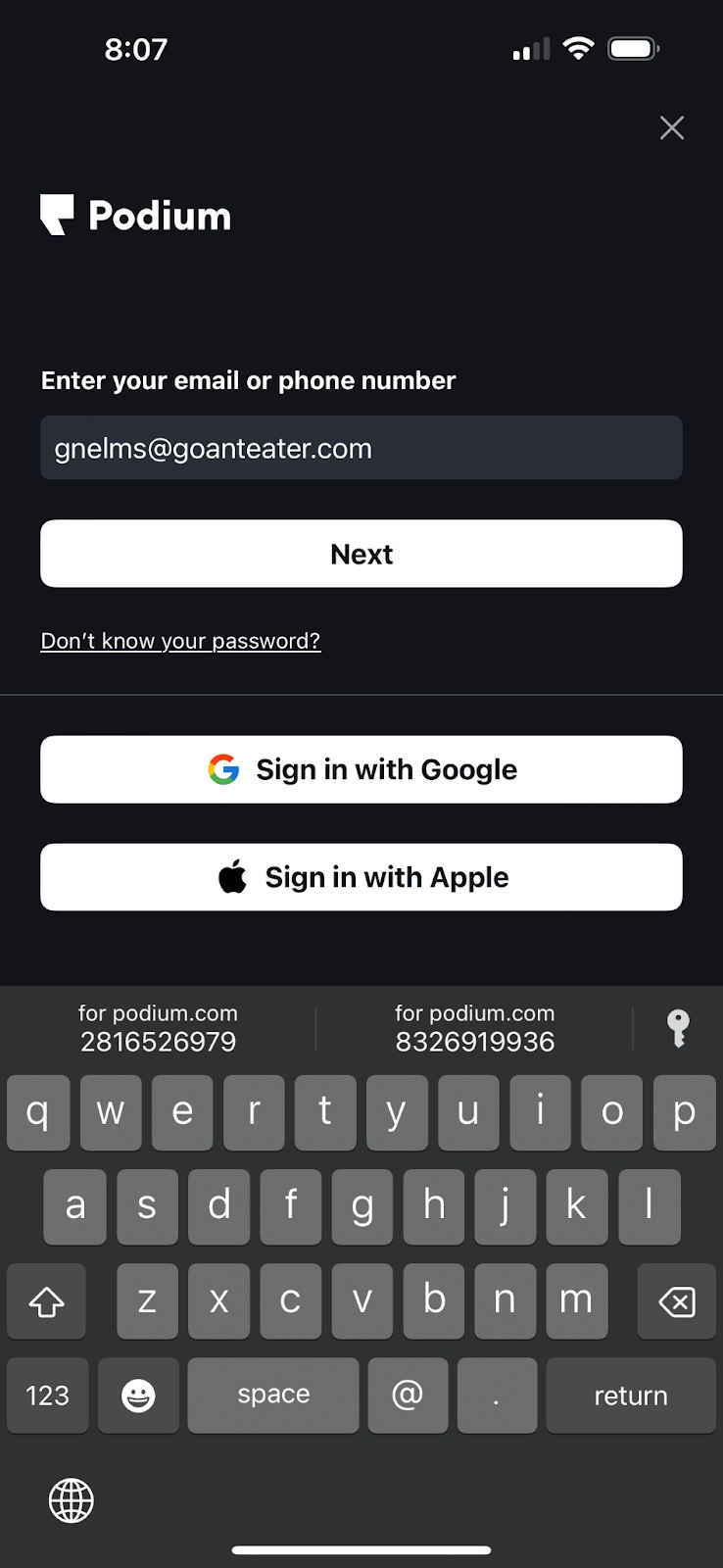
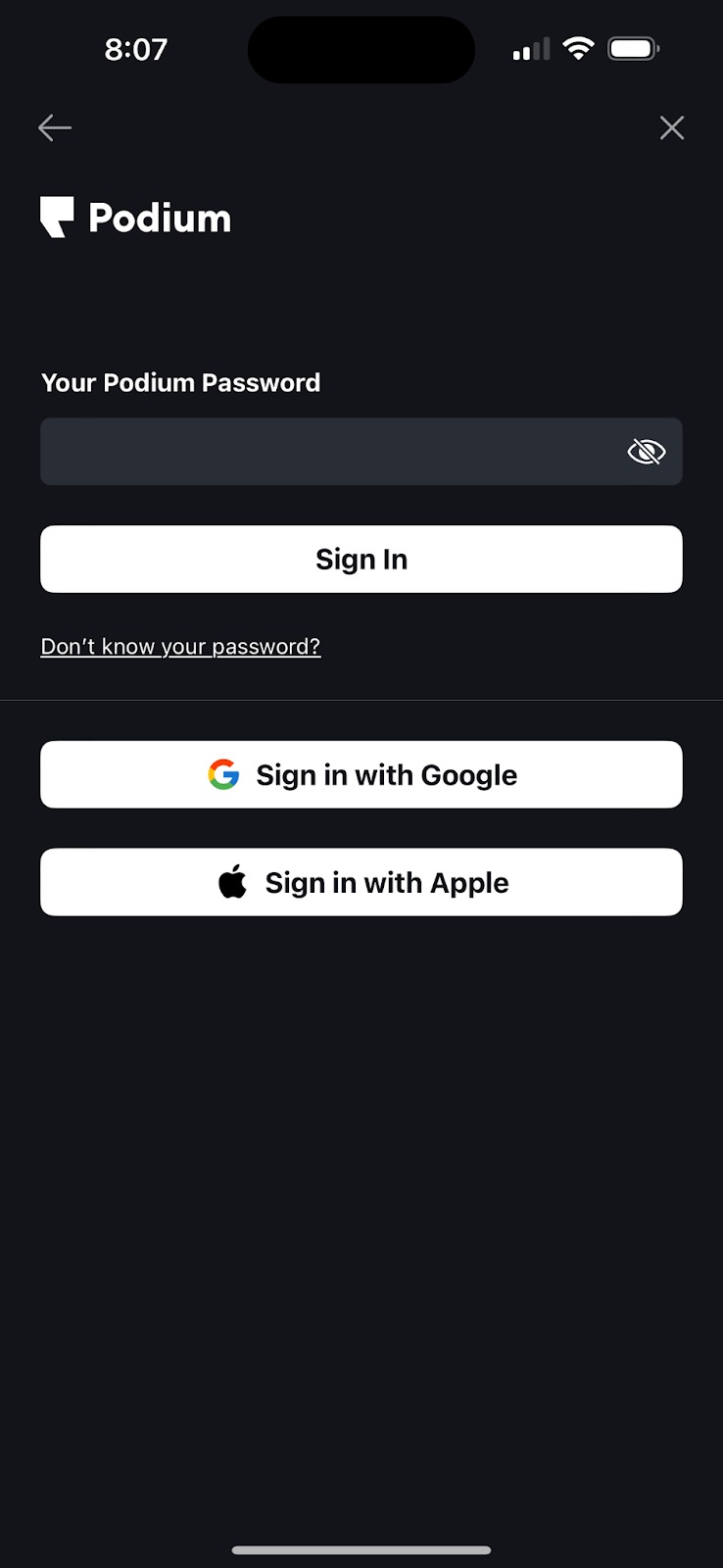
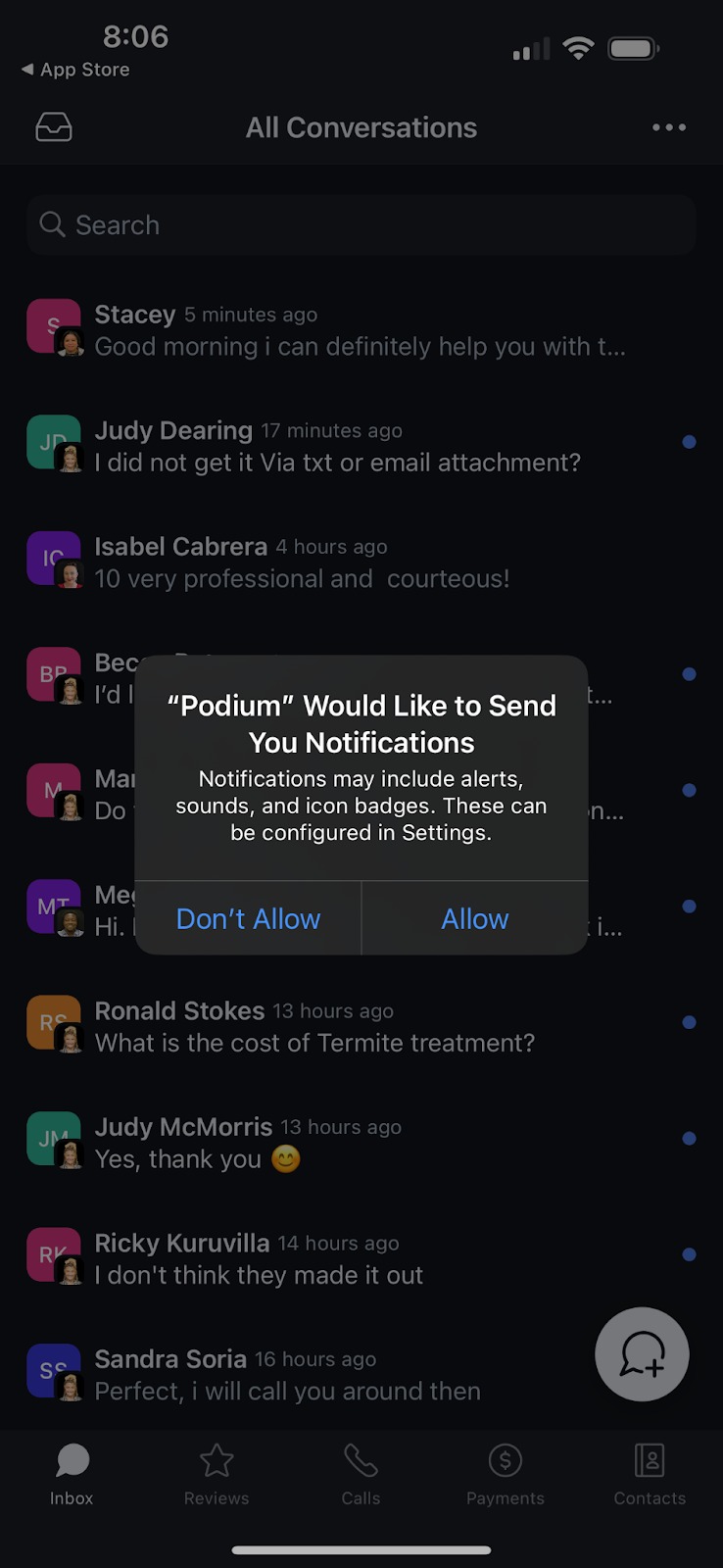
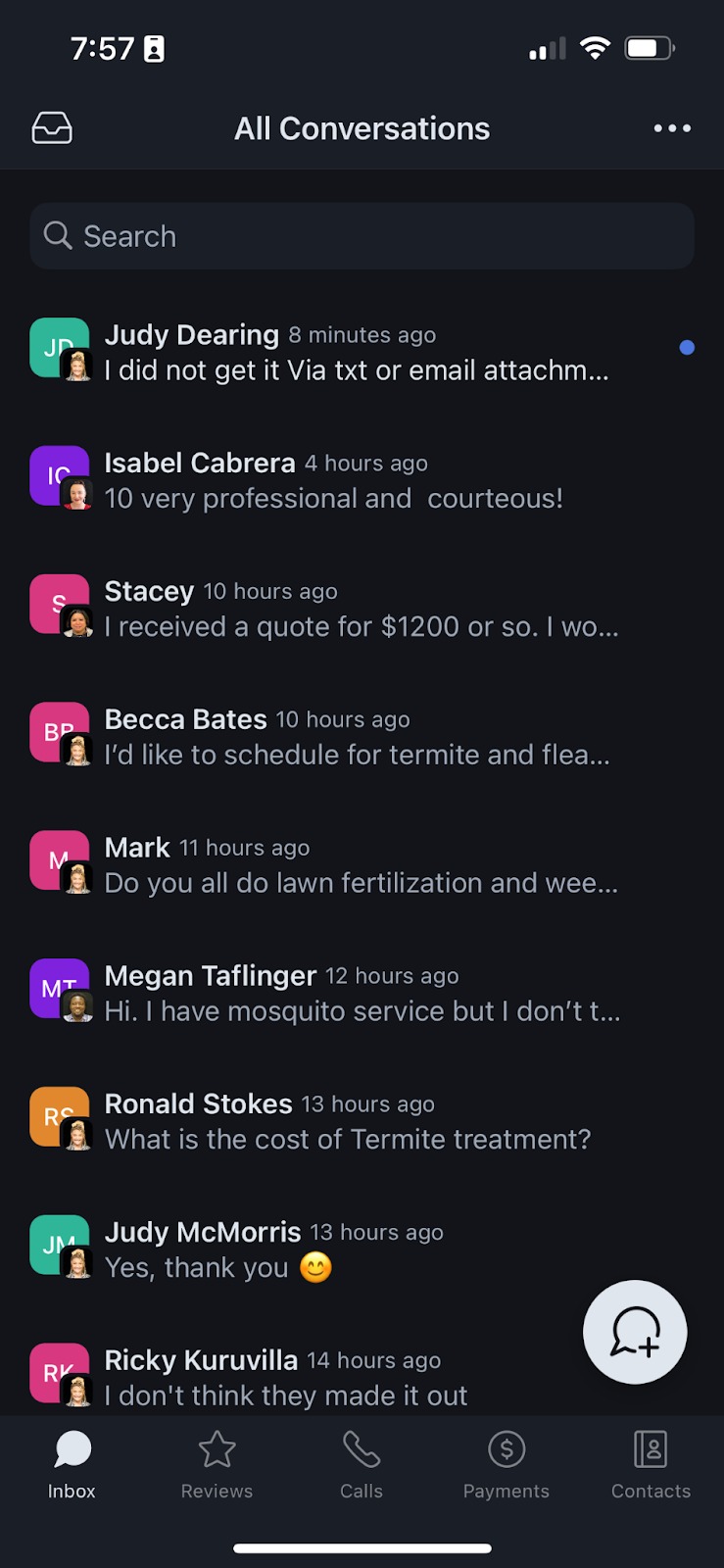
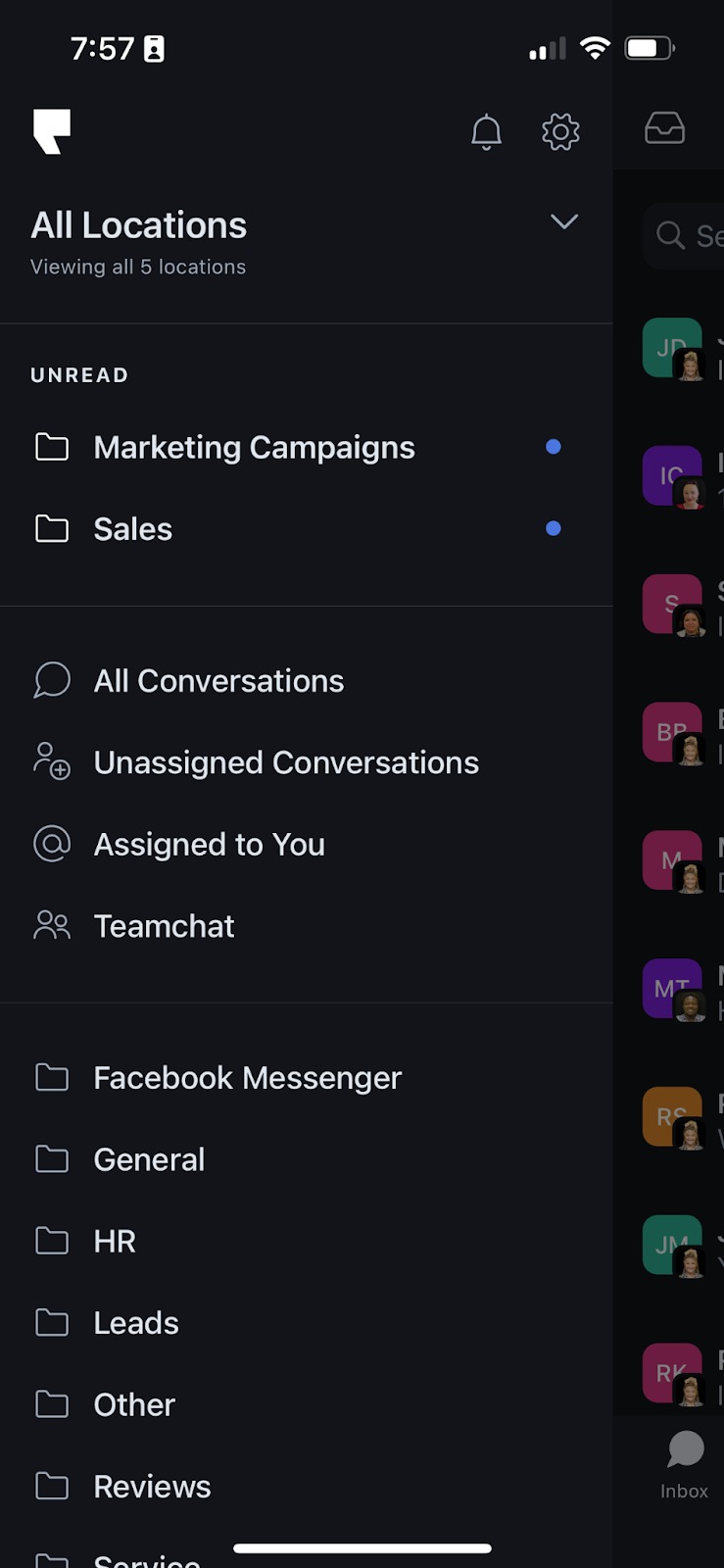
Once you are signed in, your Podium app will display CONVERSATIONS INBOX. This pertains to EXTERNAL communication with customers. Very important that you select the icon on the left top side of the screen (looking like a file box). This will take you to a different menu that will show you INTERNAL COMMUNICATION options such as “Teamchat”. Proceed to select “Teamchat” option > and the name of the chat group you want to use.
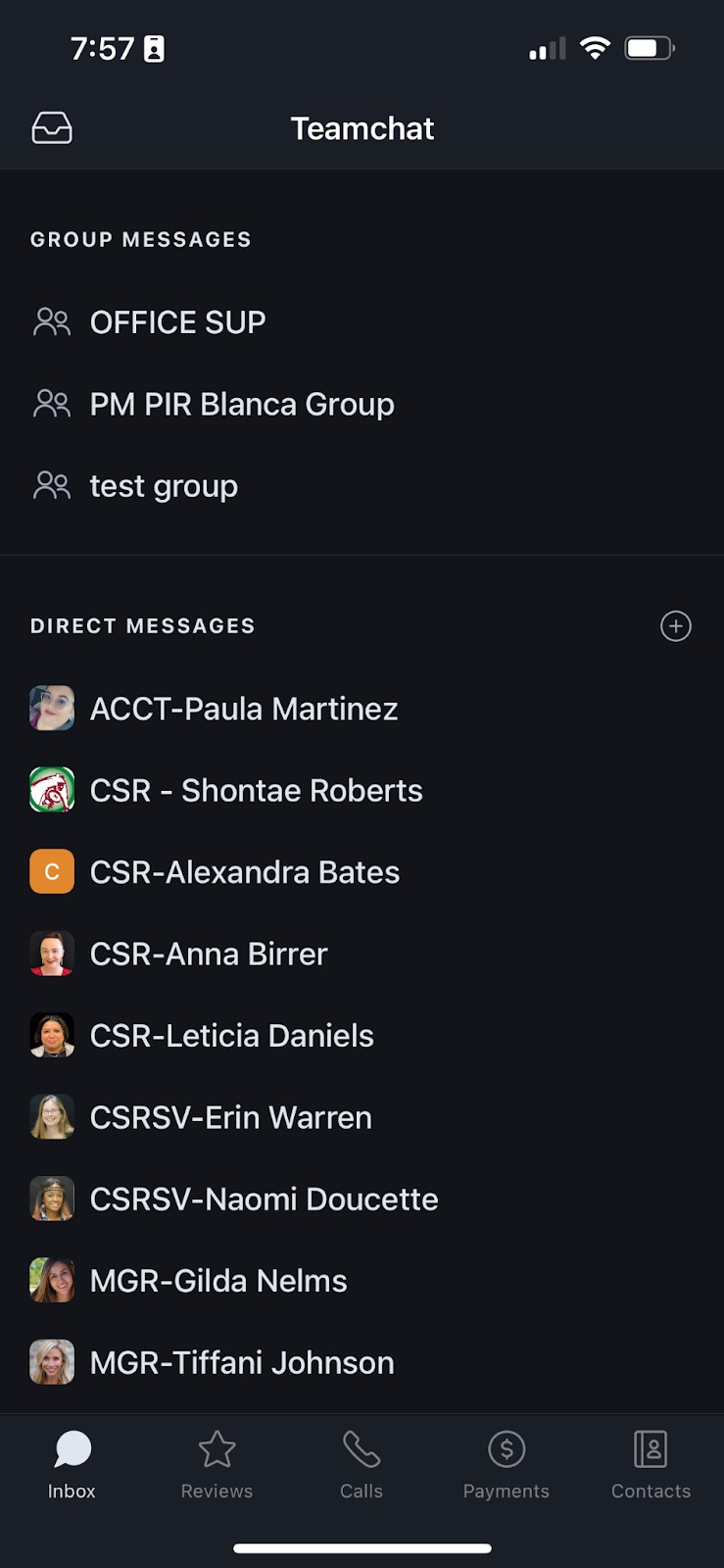
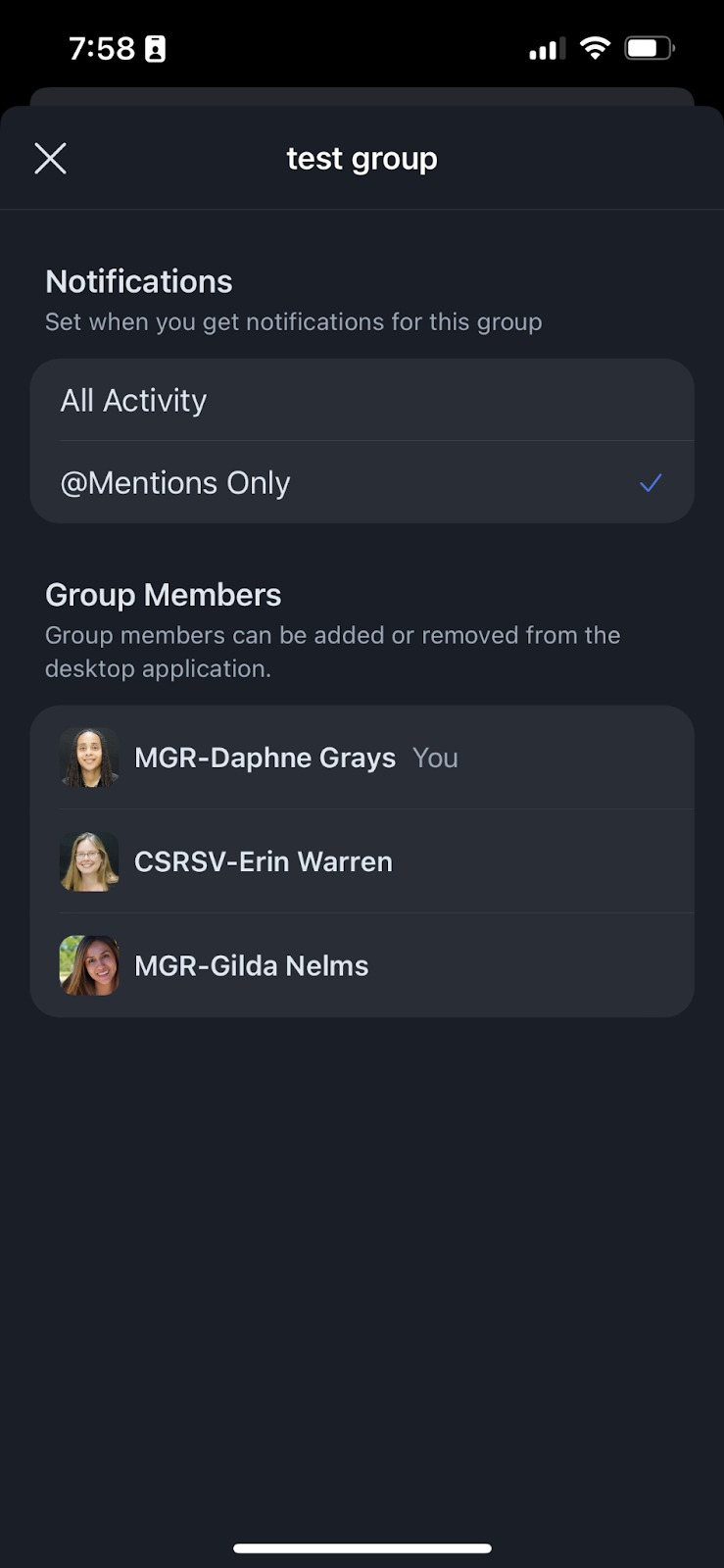
Select the menu of the group on the right upper corner on your screen (tree horizontal dots) to manage notifications. If you wish to only receive notifications when other people mention you, select the “@Mentions Only” option. Select “X” to go back to the group screen.
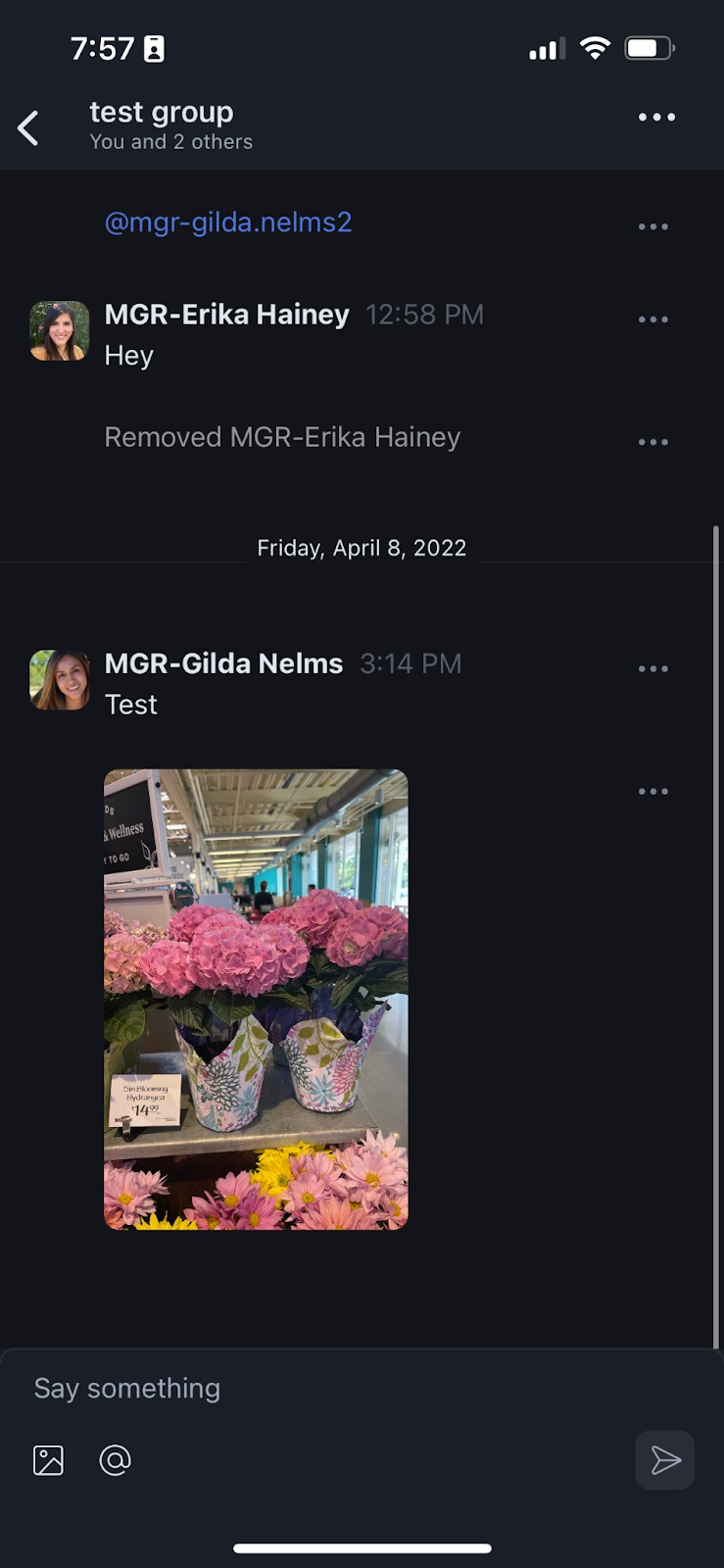
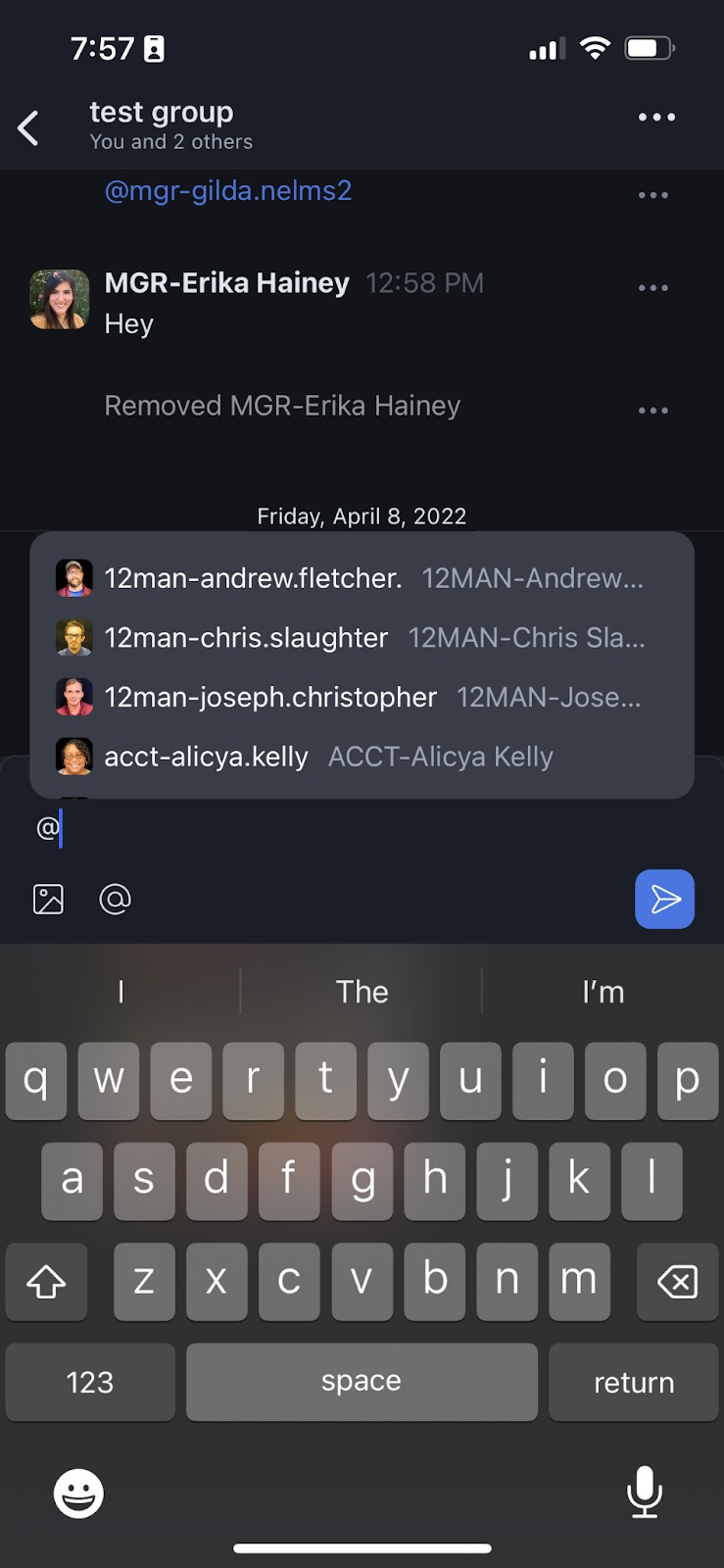
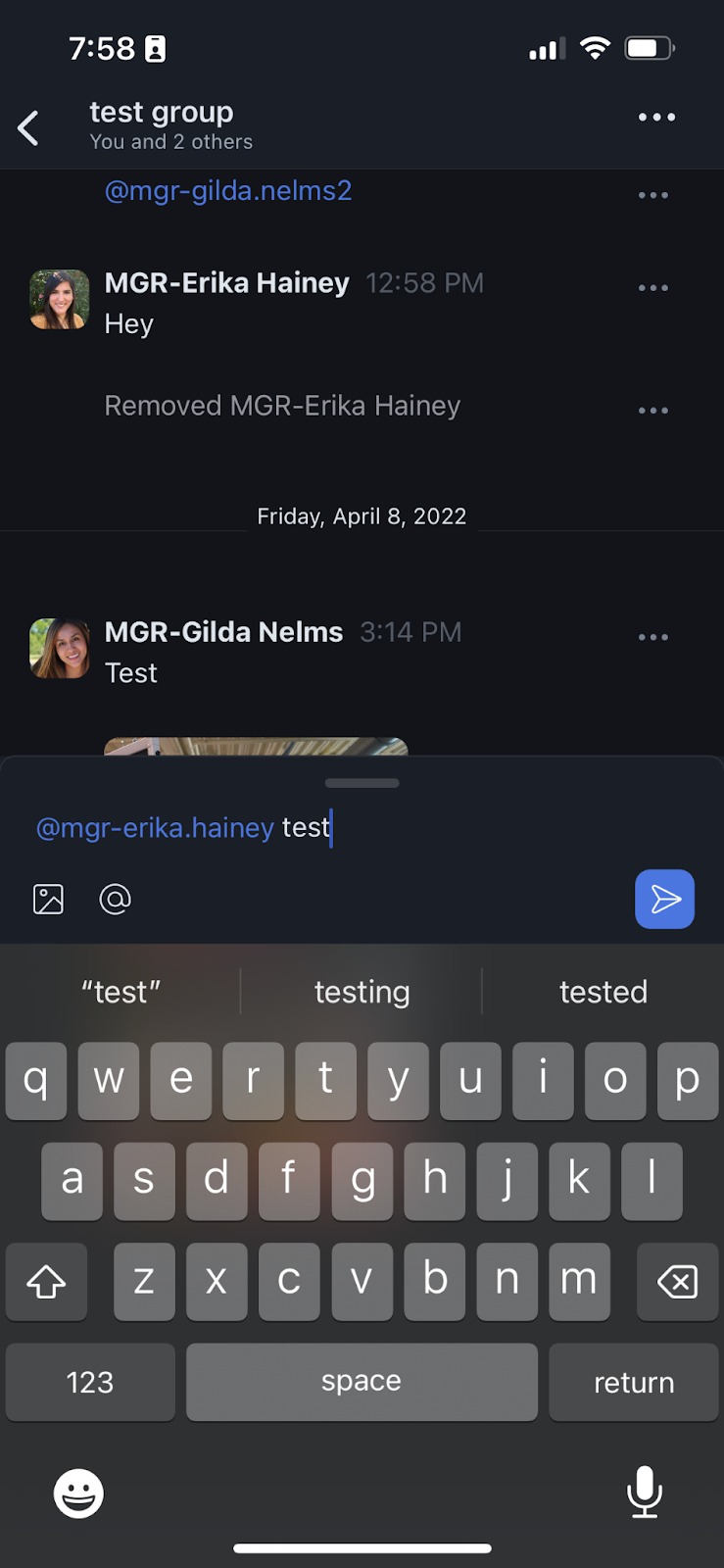
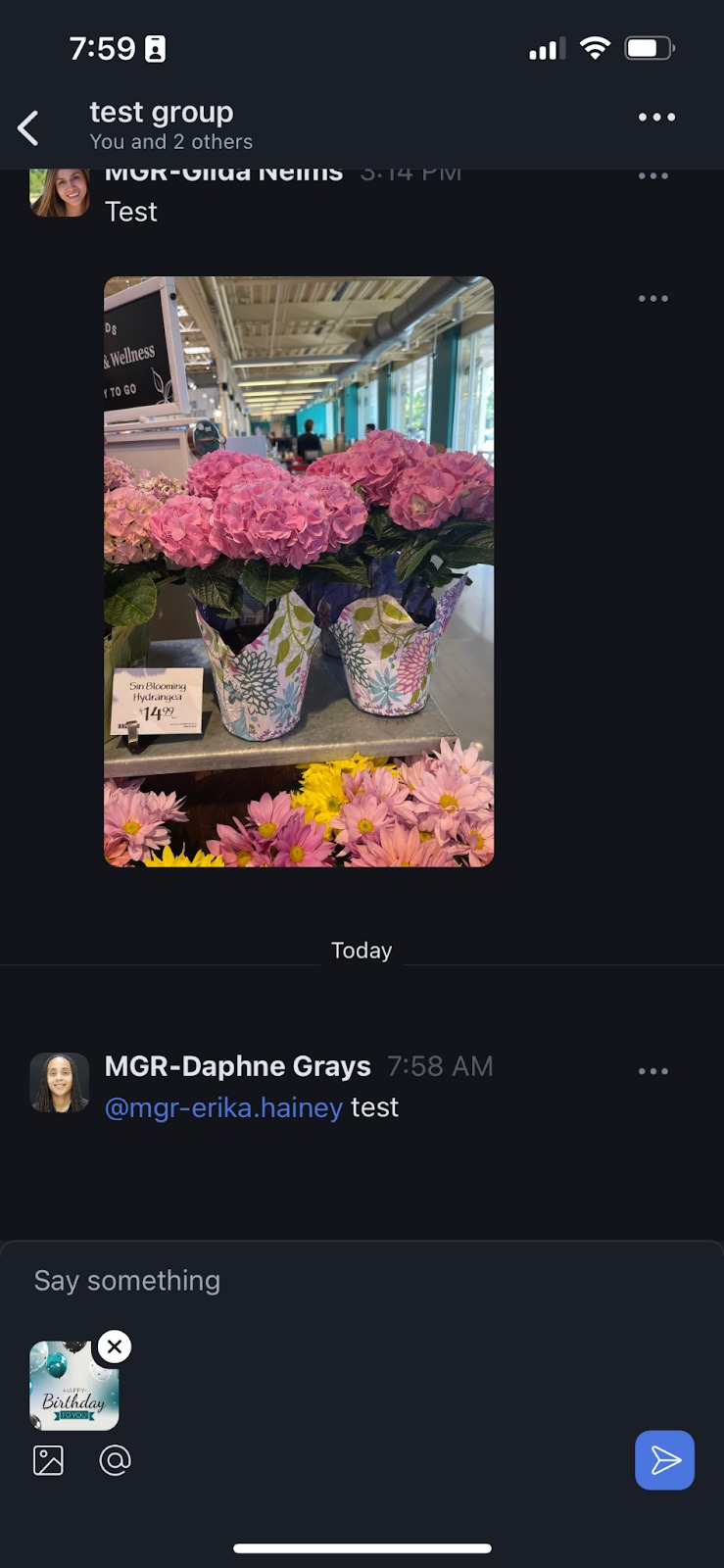
Once you are back to the group screen, remember to elect the “@” symbol and type the name of the person you want to reach out to. Select the name from the auto-populating options presented then type your message > Hit the send option (the paper plane button).
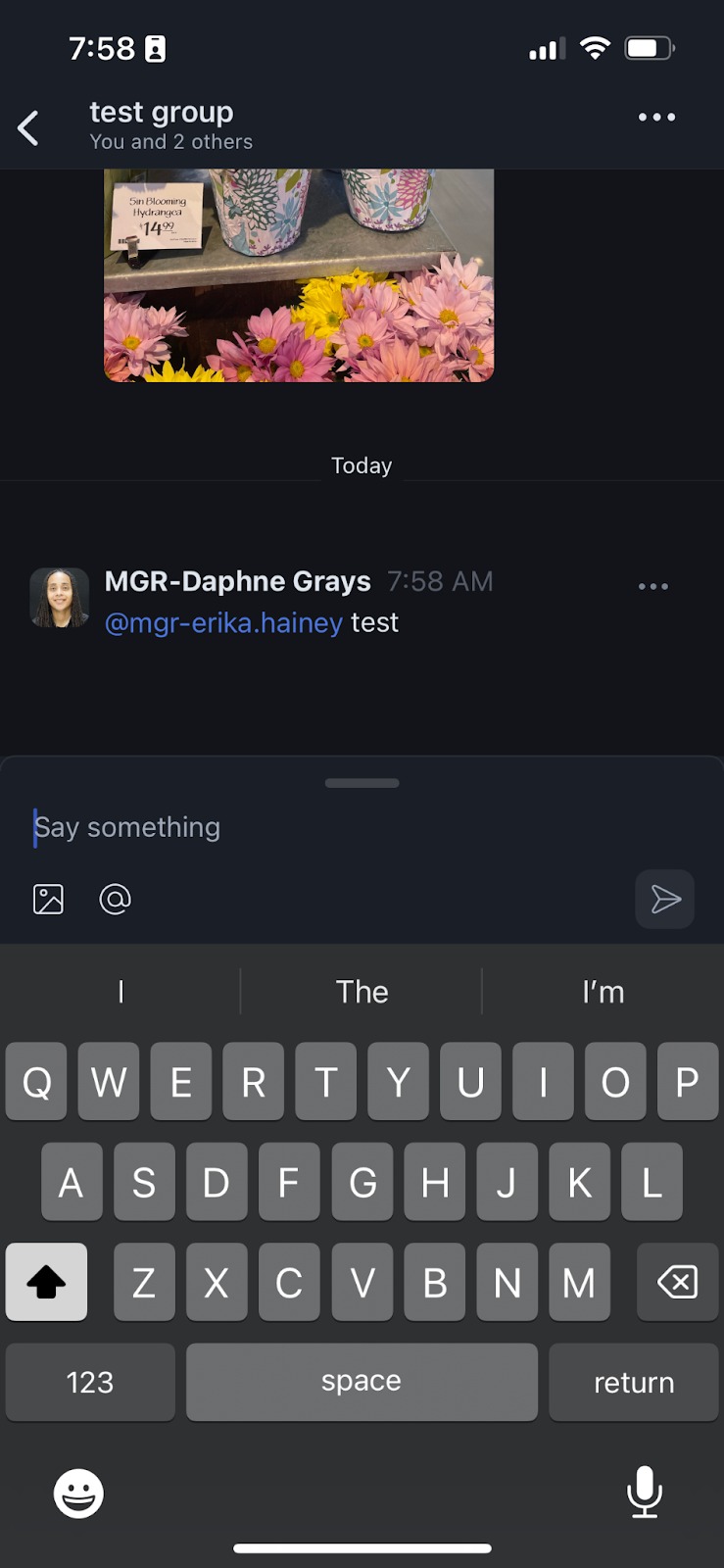
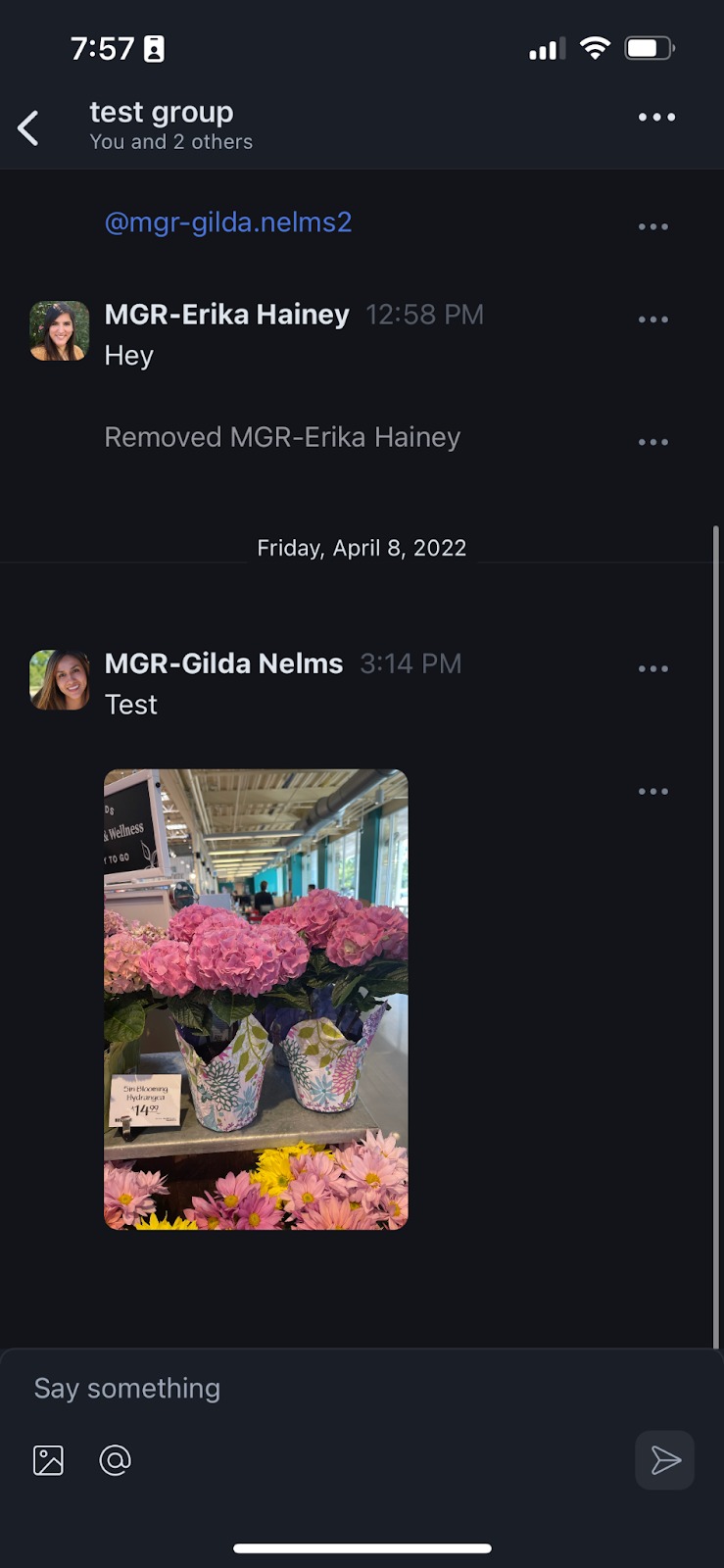
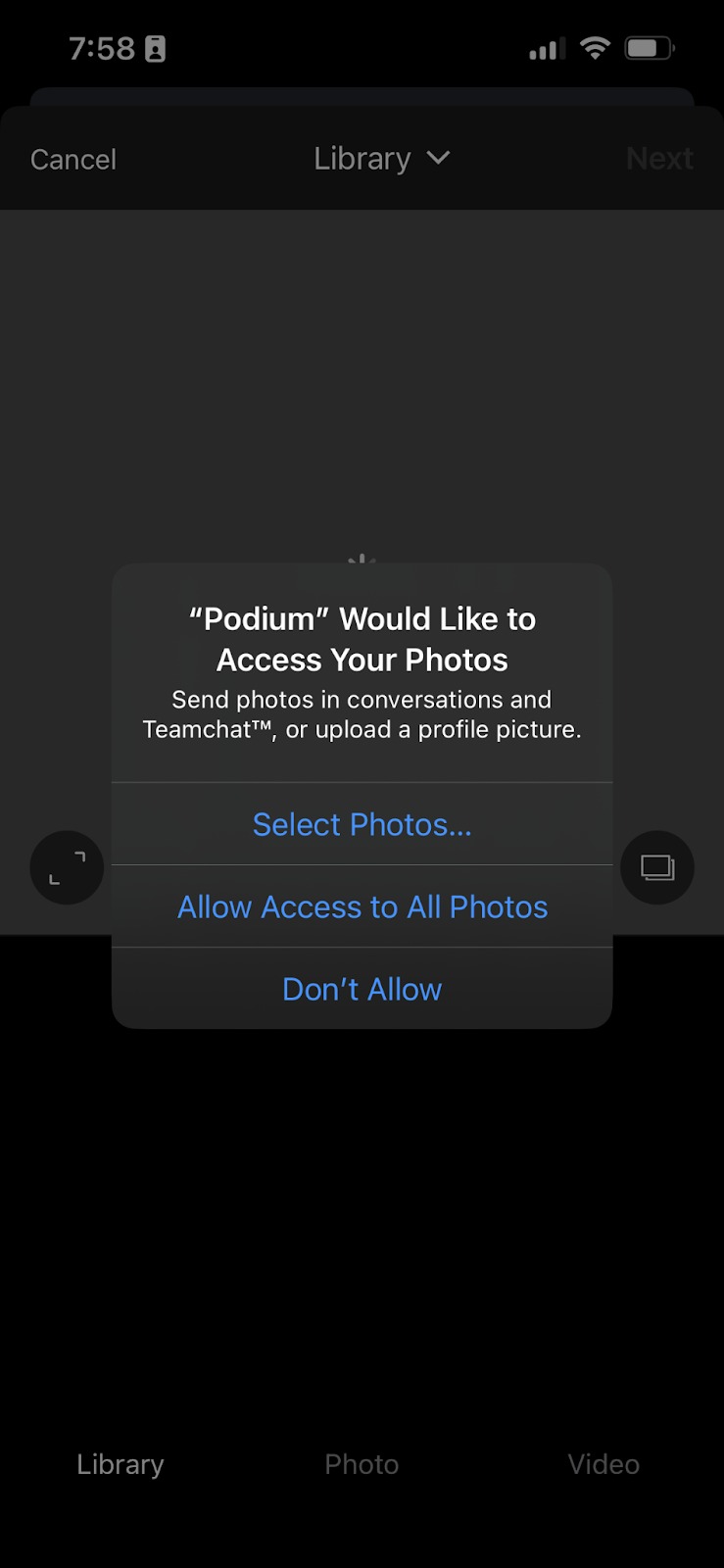
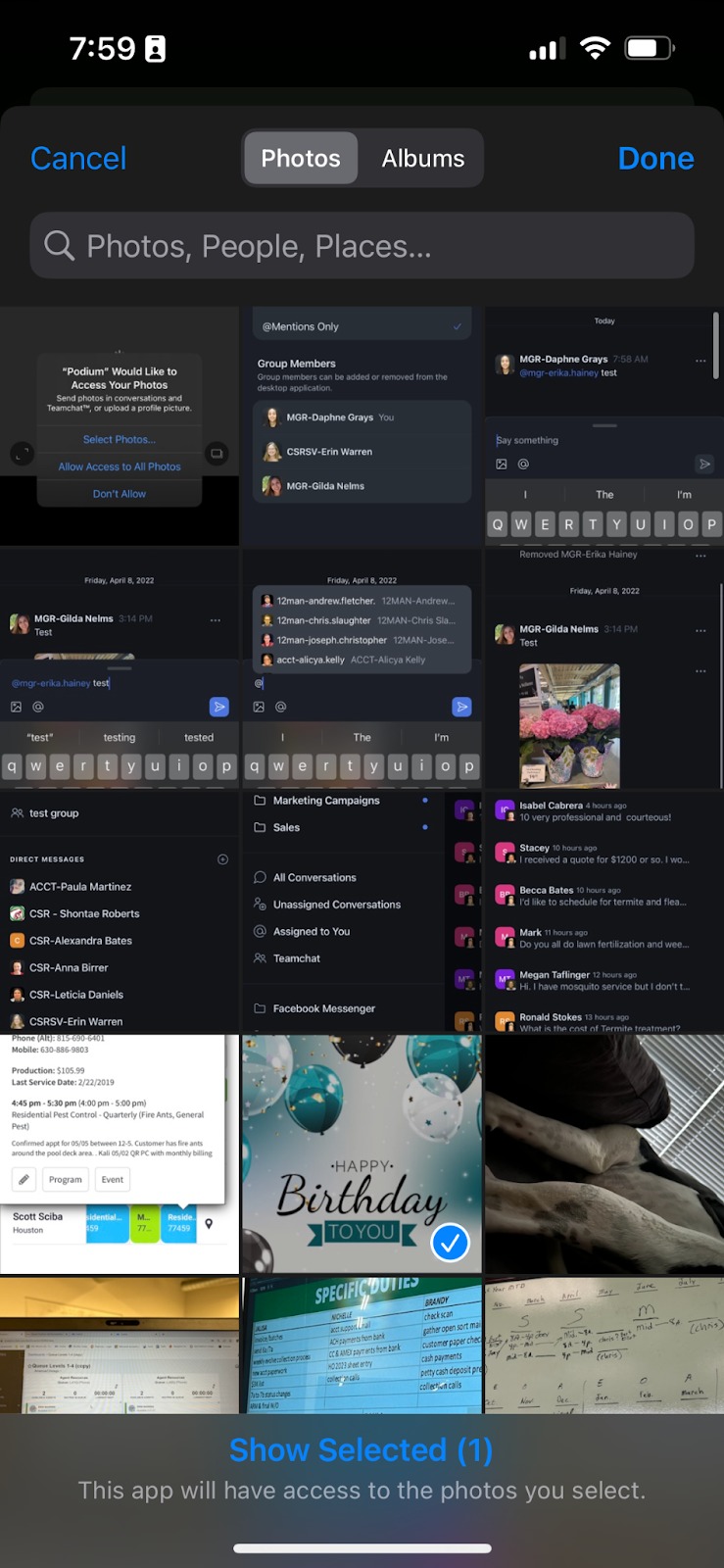
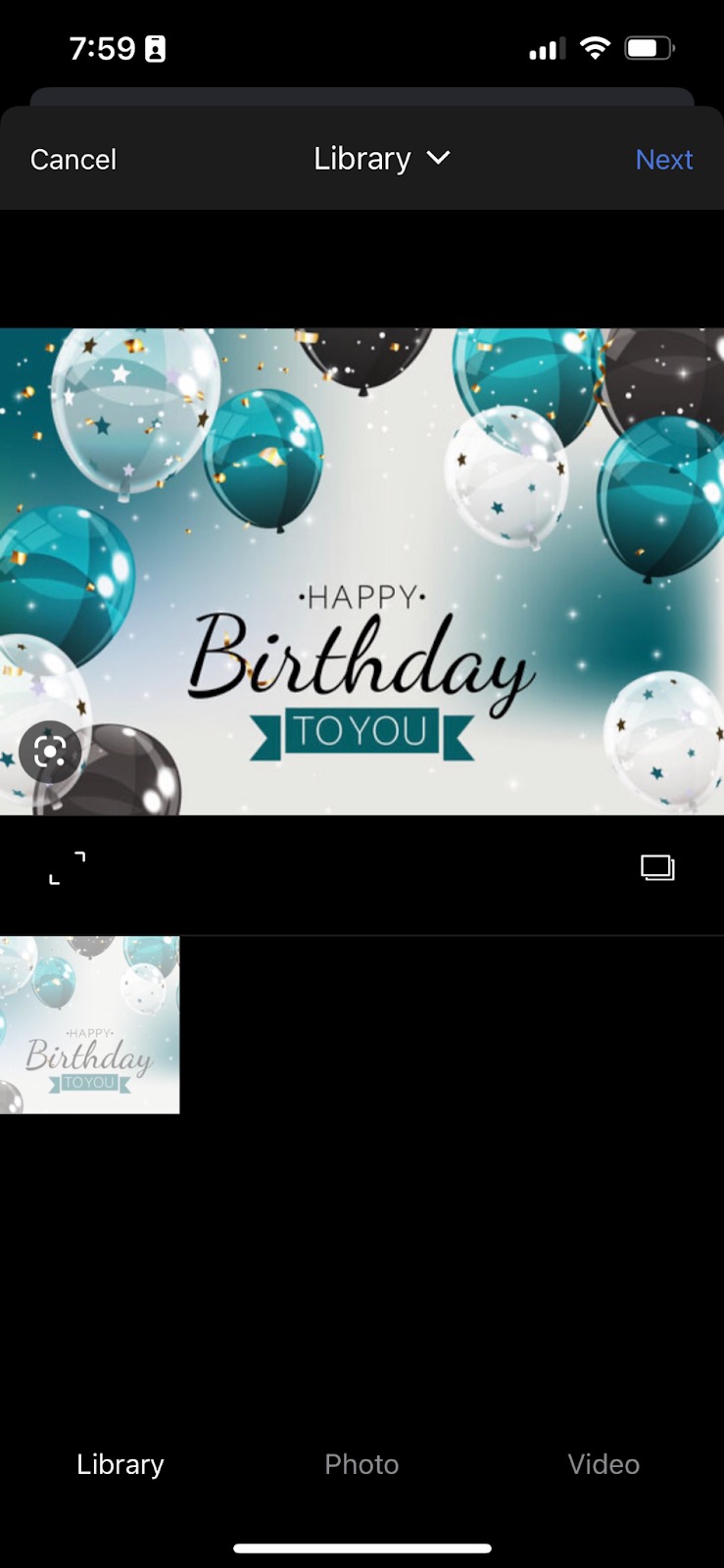
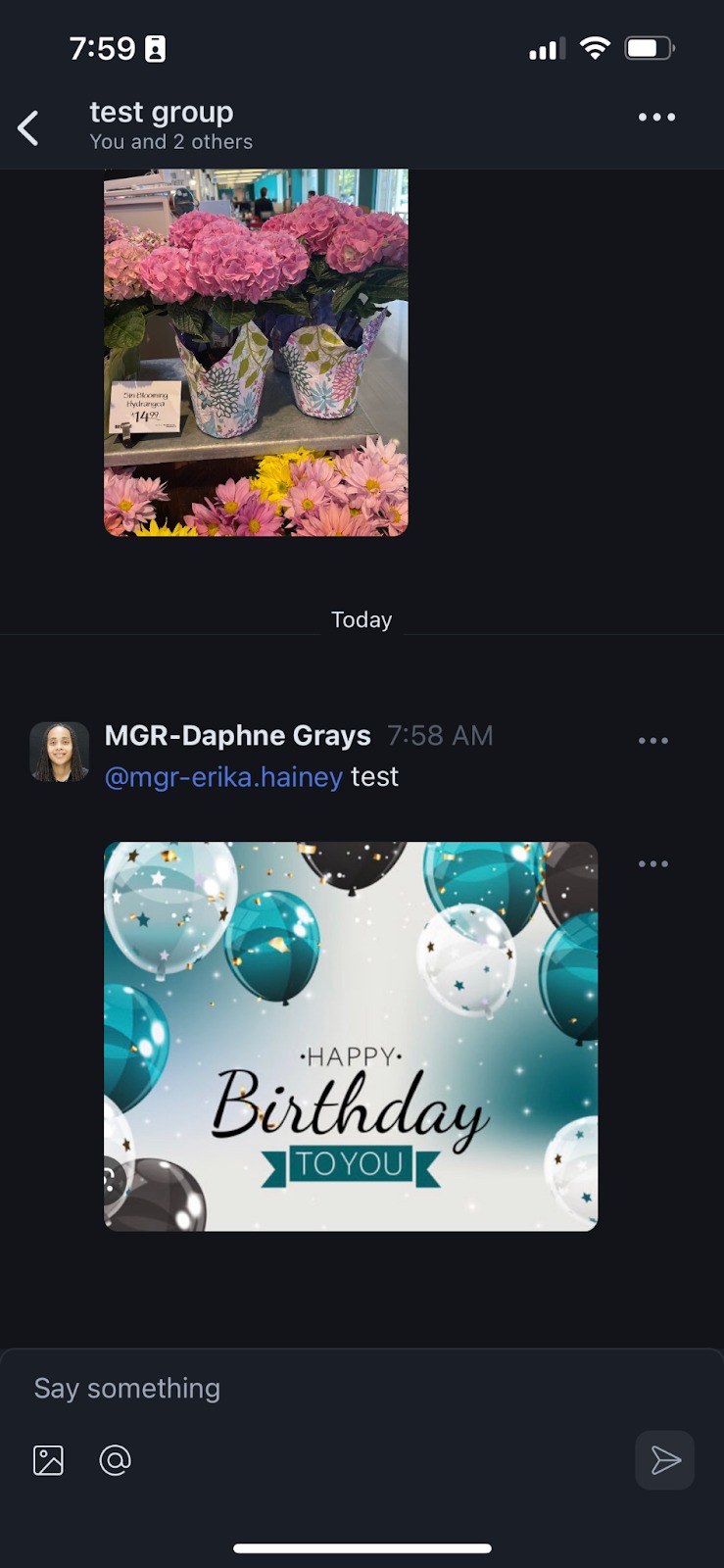
To attach images, select the image icon > “Select Photos” > Select the picture(s) you want to send > “Done” > “Next” > Hit the send option (the paper plane button).
Enjoy this tool with your team =)
Was this article helpful?
That’s Great!
Thank you for your feedback
Sorry! We couldn't be helpful
Thank you for your feedback
Feedback sent
We appreciate your effort and will try to fix the article