How to Generate a Production Summary Report
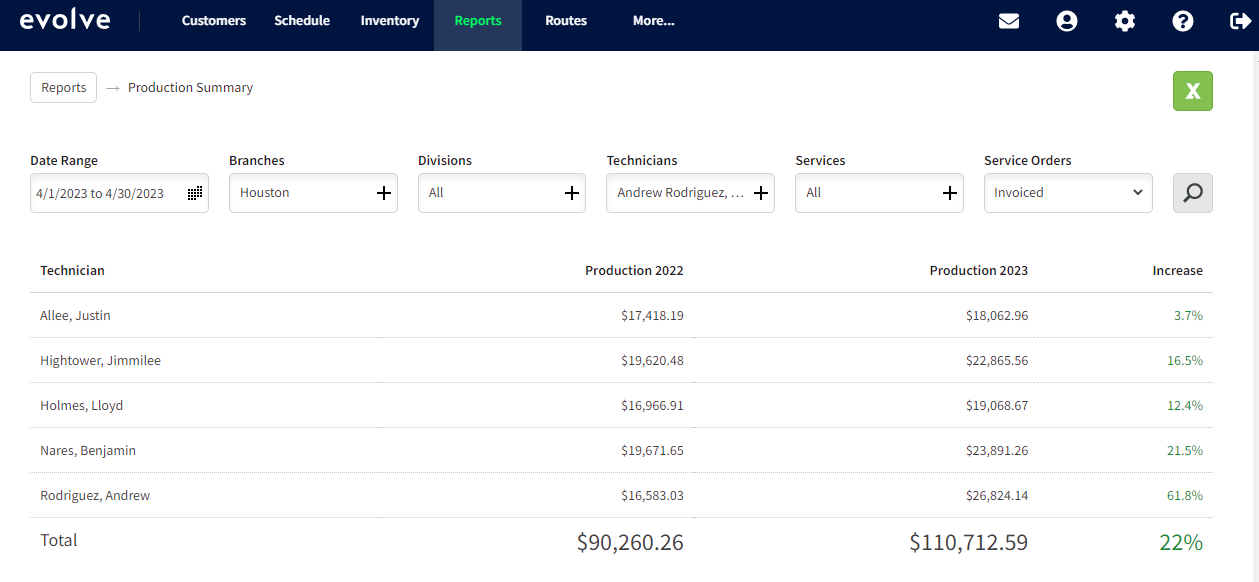
This report presents a comparison between the production within a specified date range and the production during the same date range of the previous year.
Open the Evolve webbrowser.
Login if you are not already.

Select Reports at the top middle of the screen.

Select Production Summary

This is the screen that you will see.
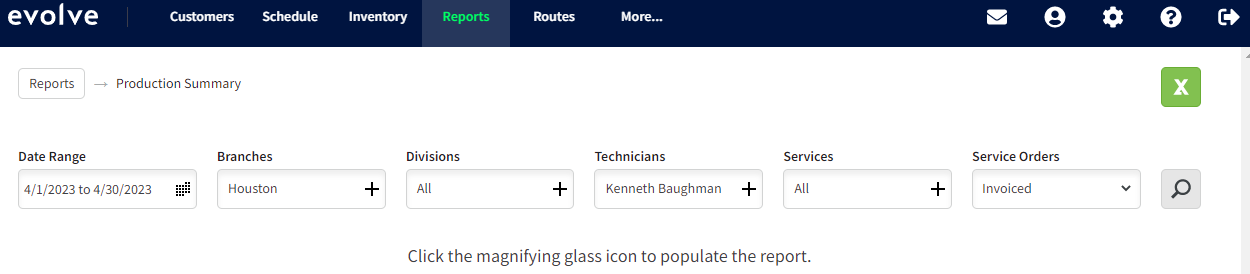
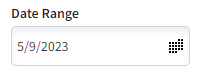
Select the desired Date Range.
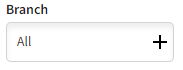
Select Branch - Houston.
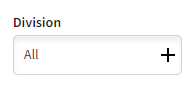
Select the desired Division(s).
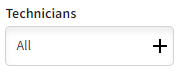
Select desired technician(s).
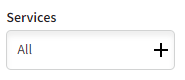
Select the desired Service(s).
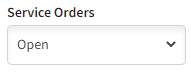
Select the desired type of Service Orders.
Invoiced: will show all Serviced Orders that have been invoiced.
Open: will show all Service Orders that are currently open.
Completed: will show all service orders that have been closed but not invoiced.
Click the magnifying glass. If you click the green X it will generate a spreadsheet in Excel.

The Report should look something like this:
Approved by:
Norman
Ben Johnson- COO- 05/12/23
Steven Martin
Was this article helpful?
That’s Great!
Thank you for your feedback
Sorry! We couldn't be helpful
Thank you for your feedback
Feedback sent
We appreciate your effort and will try to fix the article