Generating Division Revenue Summary Report
These reports are used to monitor revenue month over month compared to year prior. You can also use it to see year to date comparisons. Because this is a revenue summary, it does not show a revenue detail report.
Open the Evolve webbrowser.
Login if you are not already.

Select Reports at the Top Middle of the screen.

Select Revenue Summary.

This is the screen you will see now.

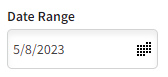
Select the desired date range.
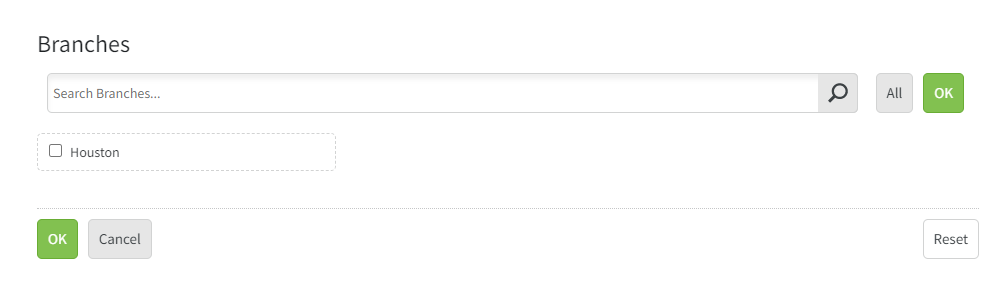
Select Branch

Select Houston then press OK
Select Division

Select Termite(or other desired Division) then press OK
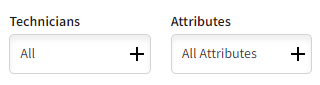
Tech- All (in every case)
Attributes- All (in every case)
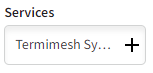
Services - for total termite revenue summary select all termite categories except for (Production) services. These are not new revenue services, if it is selected it will show duplicate revenue.
Press OK
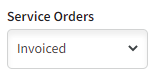
Ensure Invoiced Service Orders only.
Click the magnifying glass. If you click the green X it will generate a spreadsheet in Excel.

Approved by:
Norman
Steven Martin
Ben Johnson, COO 05/09/23
Was this article helpful?
That’s Great!
Thank you for your feedback
Sorry! We couldn't be helpful
Thank you for your feedback
Feedback sent
We appreciate your effort and will try to fix the article