Sales Commission Report Computer
Open the Evolve Webbrowser
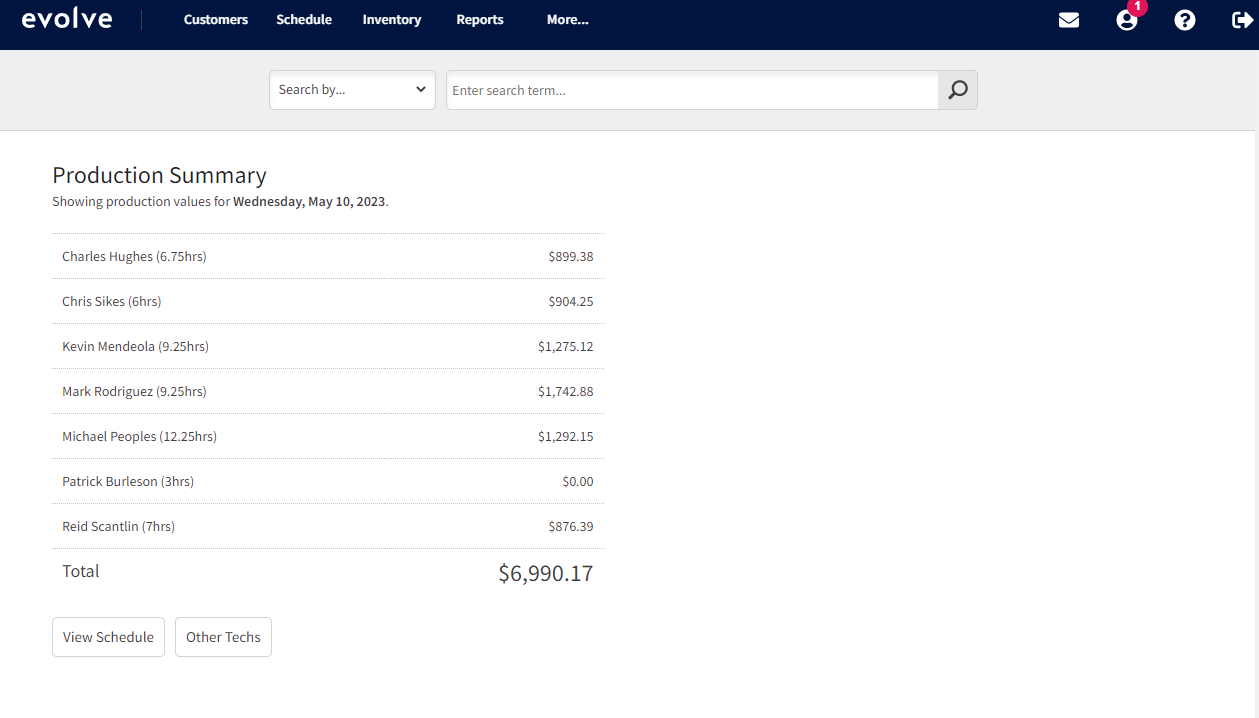
Select the Reports tab.

It will bring you to this screen.
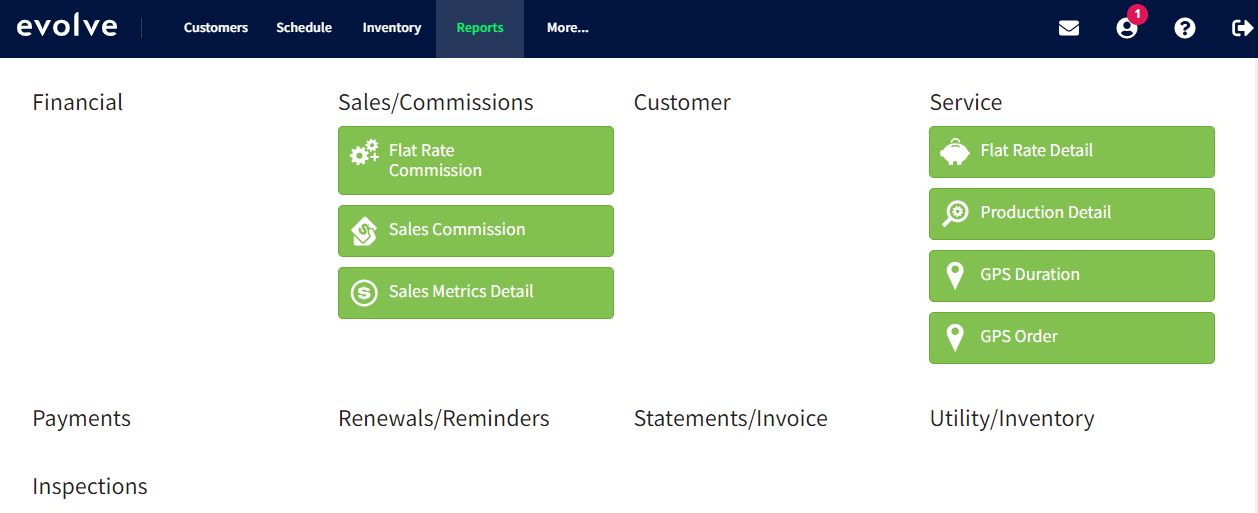
Select Sales Commission.

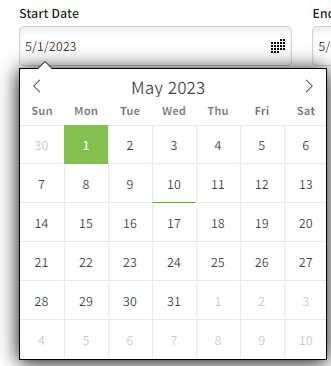
Input the desired Start Date.
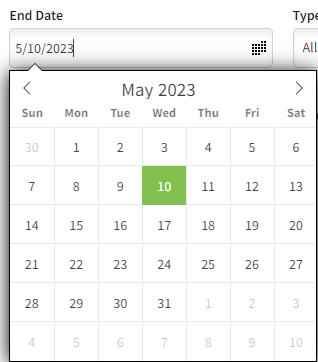
Input the desired End Date.
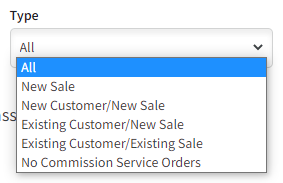
Select the Type.
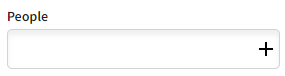
Select the people or person you would like to generate the report for.
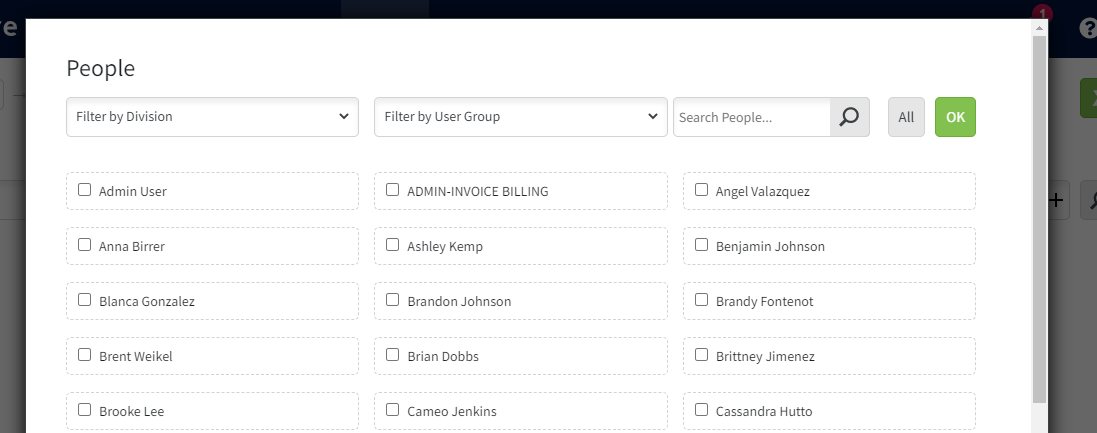
After you select the desired person/people, make sure you select OK.
Select the magnifying glass to generate the report. Select the Green X to generate a spreadsheet in Excel.

This is what Evolve will show.
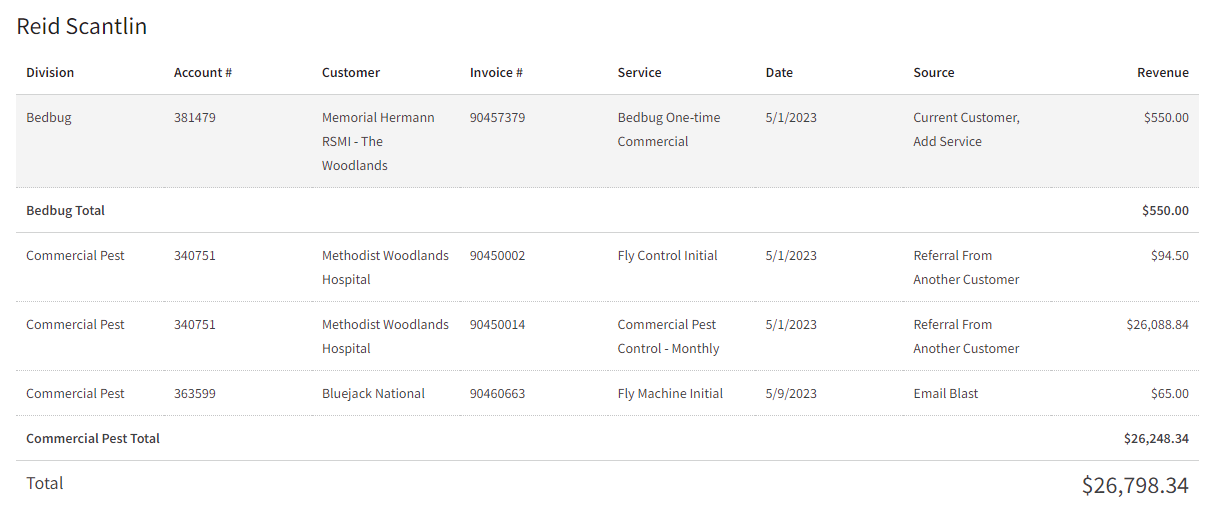
This shows the total value of the account which is why you will need to use the Green X to generate an Excel Spreadsheet to generate Split Value.
The Spreadsheet will look similar to this and will show Split Value which is what your commission will be based on.

On Commercial Account add on sales, you will want to focus on Split Value, as this is what the commission will be paid on.

You will then need to add these numbers together. (94.50+1,121.82+65=$1,281.32).
Hospital BedBug sales do not count towards technician sales.
Then you will multiply your commission percentage times that total.
1,281.32 x (Your Commission Percentage) = Total
All Sales are paid out on the 15th of the next month. Example if you make a sale on the 1st of April you will be paid on the 15th of May.
Approved by:
Norman
Steven Martin
Dylan Jenkins
Michael Green
Was this article helpful?
That’s Great!
Thank you for your feedback
Sorry! We couldn't be helpful
Thank you for your feedback
Feedback sent
We appreciate your effort and will try to fix the article