Pest Sighting in Evolve App
Open the Evolve application on your mobile device.

Select the desired Service Order.
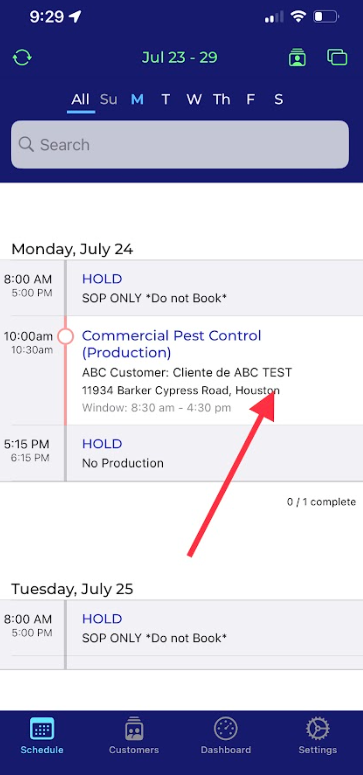
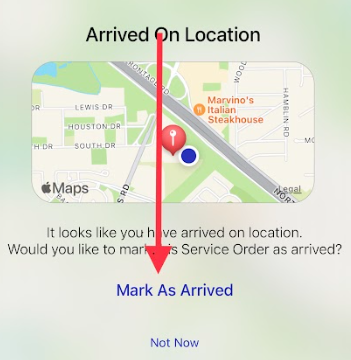
Mark as arrived if you haven’t already done so.
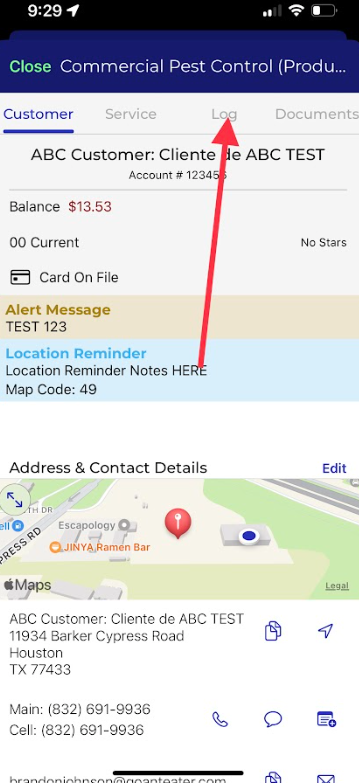
Select the Log Tab.
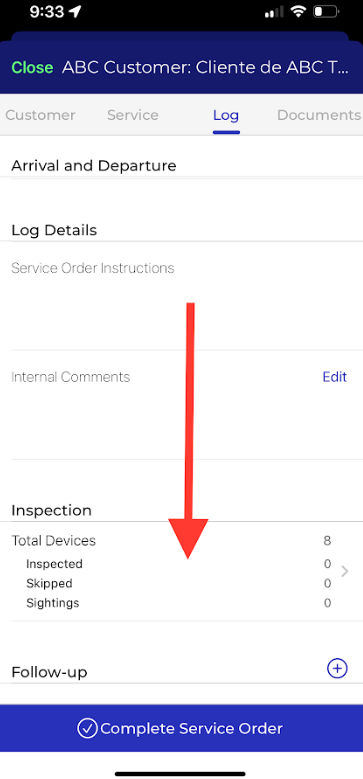
Scroll down to Inspection and select Total Devices.
Select the desired area you would like to add the sighting to.
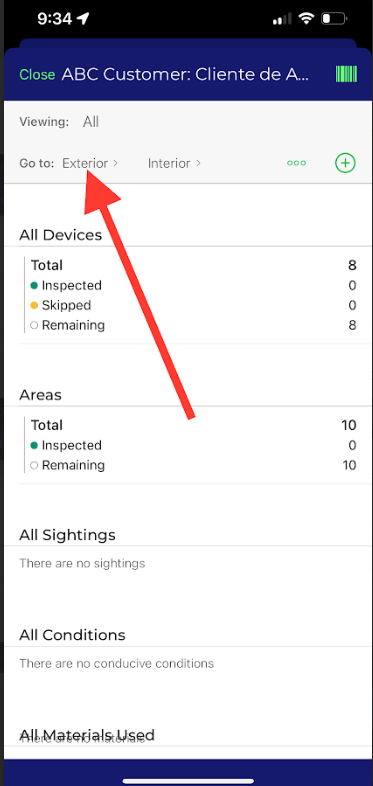
Select the Green + next to Sightings.
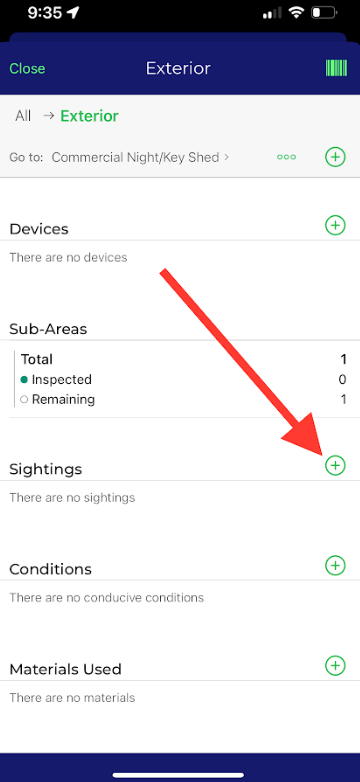
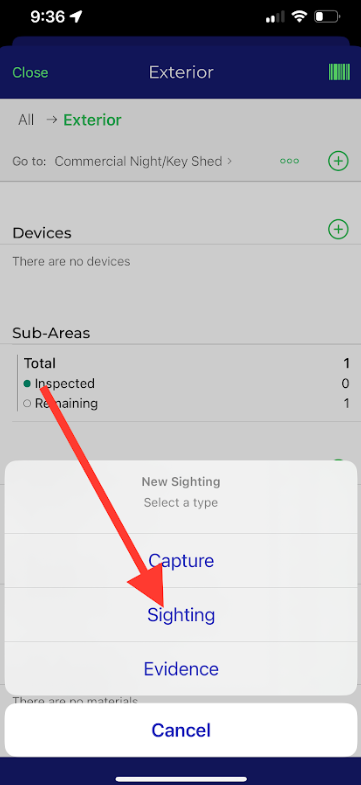
Select the type of Activity you would like to add:
Capture
Sighting
Evidence
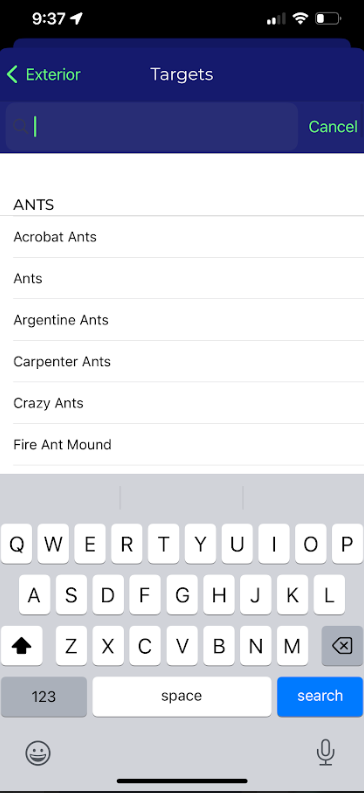
Select Target.
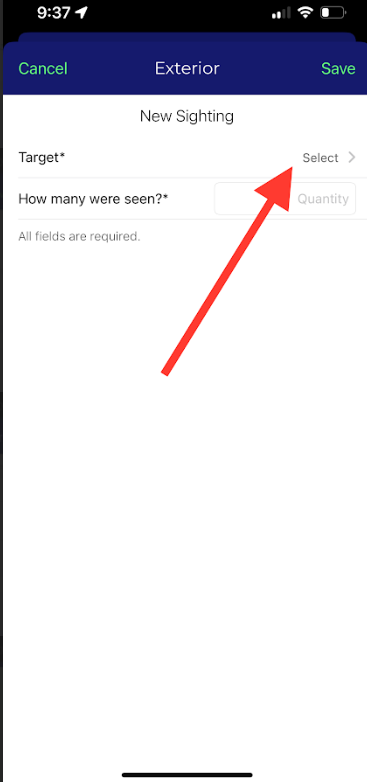
Input the type of Pest or Target you would like to add.
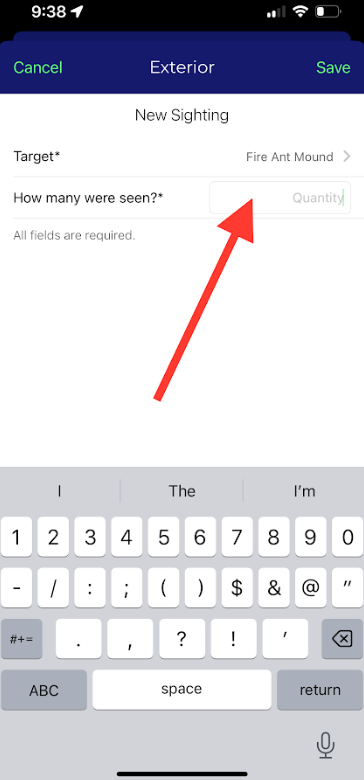
Input the Quantity.
Save the Sighting by clicking Save in the top right corner of the screen.
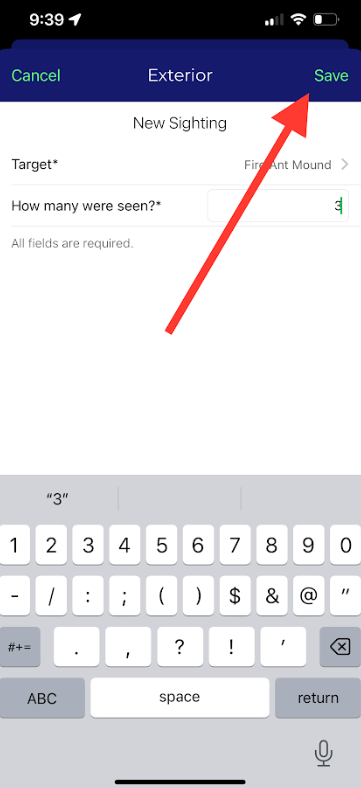
You have now logged your pest sighting, repeat the steps above to input more sightings.
Approved by:
Norman
Kenneth Baughman
Steven Martin
Was this article helpful?
That’s Great!
Thank you for your feedback
Sorry! We couldn't be helpful
Thank you for your feedback
Feedback sent
We appreciate your effort and will try to fix the article